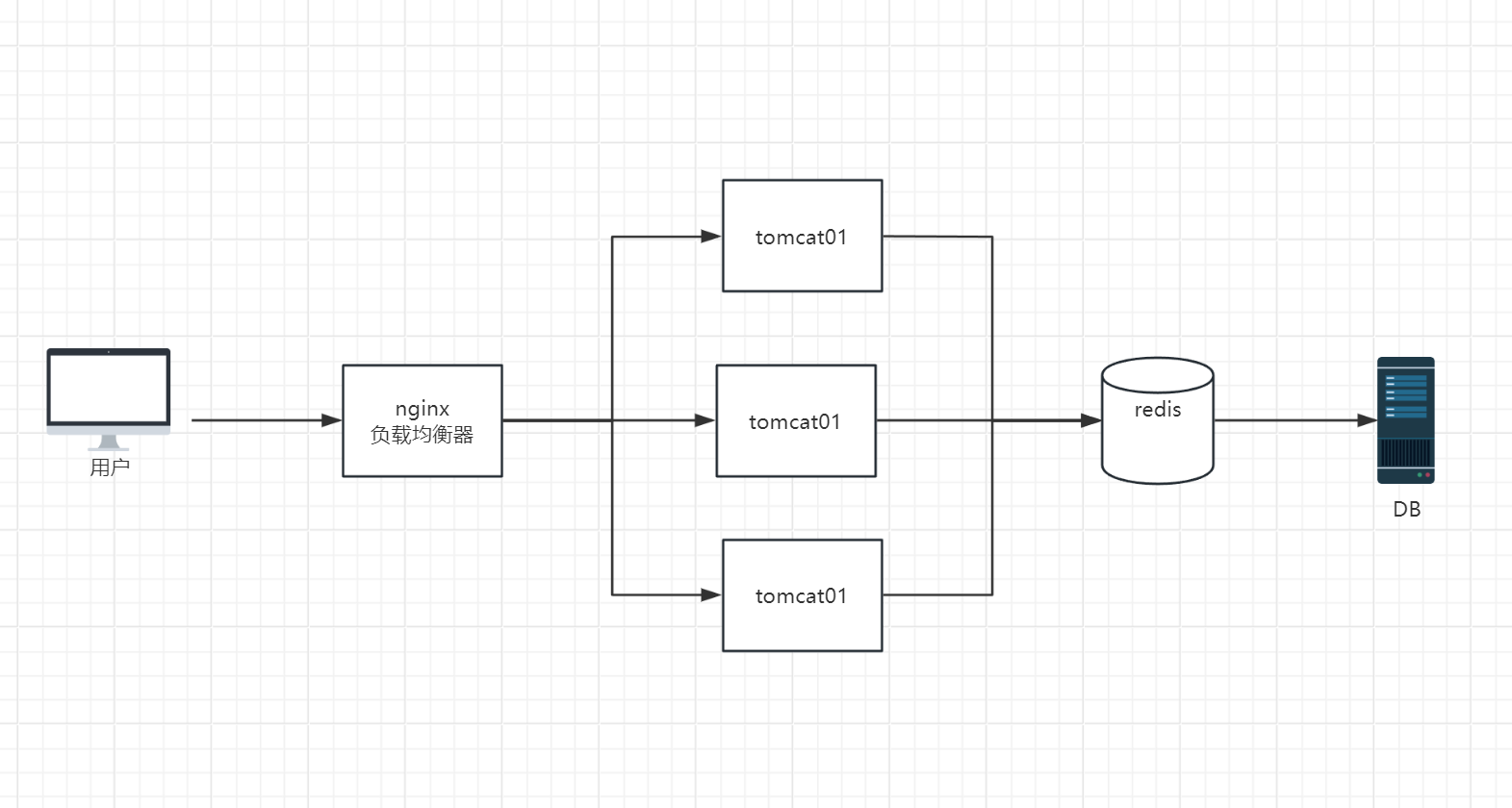
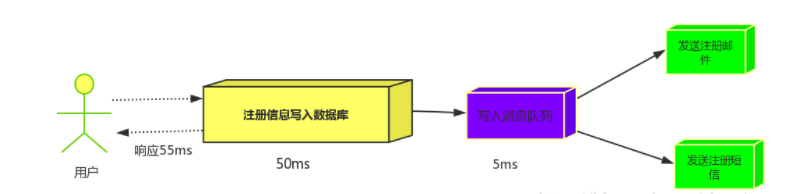
为什么要管理代码?
版本控制:可以追踪代码的变更记录,并且可以看到修改的内容,以及版本的回滚;
分支管理:可以让我们同时处理多个任务。并且不会影响稳定的分支(主分支);
团队协作:可以让多人协作开发,并且在没有相互影响的条件下独立完成工作。
主流的代码仓库
Github
Gitee
Gitlab
Git工具 gitfor官网:https://gitforwindows.org/
下载链接:https://github.com/git-for-windows/git/releases/download/v2.45.2.windows.1/Git-2.45.2-64-bit.exe
安装
略
打开Git终端
Git初始化配置
1 2 3 4 5 6 7 8 9 10 $ git config user.name $ git config user.email $ git config --list
配置全局用户名和邮箱
1 2 3 4 5 6 7 8 9 10 11 12 $ git config --global user.name "你的名字" $ git config --global user.email 你的邮箱 $ ssh-keygen.exe -t rsa -C "你的邮箱" $ cat ~/.ssh/ id_rsa id_rsa.pub known_hosts
Gitee使用 官网链接:https://gitee.com/
注册
略
gitee使用
GItee配置SSH公钥
1 2 3 $ cat ~/.ssh/id_rsa.pub ssh-rsa AAAAB3NzaC1yc2EAAAADAQABAAABgQDN9T3s7uqnOSI2hME0EOdyWQvVw8Cu0uBFFH/vEIaBsyzJylAPI/td0QxLHnCSbRrD+GrIfh99/5giVTx0vNo6dBwhiTp3BlrQhVgBXCqd9evH5Mn03JZBK9aIrUumliaBpWezXh4Se2OSxlpAKt1aNopw8Acvh9IvLCPEOcKHdwEloogz4nRqkG9ZGfuObXeu9sxWt7efg3eASExA7H+x9bvGOkVLm33V+LFWD1/ln4nwGbkvQkh0fCTHZiWbSCTpXKQtmknvBfrT7Fn2VtUhP4jWZhfuft1Ty2j2Jmajc6ZbgEc5z1M3JQo+KoVYlKlaONs5+u/Pmj6pdqpinMo0klwI4hJsO2J0TN+j9S6wsBfIZEh7Cqn1rabf/mE2bXoXmRb8DDc4b/ycF9DLi8ZtHs9CcJWcs8eTuiqgyON75wNGILC4pxJLCFHEQ7JMCa3yCN/2XVSNRIeXdgaOScj2x68ezcJ+zEWEKio6E= hjm131641@163.com
gitee命令使用
1 2 3 4 5 6 7 8 9 10 11 12 13 14 15 16 17 18 19 20 21 22 23 24 25 26 27 28 29 30 31 32 33 34 $ git clone git@gitee.com:rulaipo/git-test.git Cloning into 'git-test' ... warning: You appear to have cloned an empty repository. $ cd git-test/ lenovo@LAPTOP-P0AL7U72 MINGW64 ~/Desktop/git-test (master) $ vim README.MD $ git add . warning: in the working copy of 'README.MD' , LF will be replaced by CRLF the next time Git touches it lenovo@LAPTOP-P0AL7U72 MINGW64 ~/Desktop/git-test (master) $ git commit -m "first commit" [master (root-commit) ee63a1e] first commit 1 file changed, 1 insertion(+) create mode 100644 README.MD lenovo@LAPTOP-P0AL7U72 MINGW64 ~/Desktop/git-test (master) $ git push origin master Enumerating objects: 3, done . Counting objects: 100% (3/3), done . Writing objects: 100% (3/3), 221 bytes | 221.00 KiB/s, done . Total 3 (delta 0), reused 0 (delta 0), pack-reused 0 (from 0) remote: Powered by GITEE.COM [GNK-6.4] To gitee.com:rulaipo/git-test.git * [new branch] master -> master
回到Gitee
案例二:开发人员本地先进行代码开发,然后在上传到新的Gitee仓库
1 2 3 4 5 6 7 8 9 10 11 12 13 14 15 16 17 18 19 20 21 22 23 24 25 26 27 28 29 30 31 32 33 34 35 lenovo@LAPTOP-P0AL7U72 MINGW64 ~/Desktop $ cd git-test/ lenovo@LAPTOP-P0AL7U72 MINGW64 ~/Desktop/git-test $ git init Initialized empty Git repository in C:/Users/lenovo/Desktop/git-test/.git/ lenovo@LAPTOP-P0AL7U72 MINGW64 ~/Desktop/git-test (master) $ git add . warning: in the working copy of 'README.MD' , LF will be replaced by CRLF the next time Git touches it lenovo@LAPTOP-P0AL7U72 MINGW64 ~/Desktop/git-test (master) $ git remote add origin git@gitee.com:rulaipo/git-test.git lenovo@LAPTOP-P0AL7U72 MINGW64 ~/Desktop/git-test (master) $ git commit -m "first commit" [master (root-commit) fd6f97a] first commit 1 file changed, 2 insertions(+) create mode 100644 README.MD lenovo@LAPTOP-P0AL7U72 MINGW64 ~/Desktop/git-test (master) $ git push origin master Enumerating objects: 3, done . Counting objects: 100% (3/3), done . Writing objects: 100% (3/3), 232 bytes | 232.00 KiB/s, done . Total 3 (delta 0), reused 0 (delta 0), pack-reused 0 (from 0) remote: Powered by GITEE.COM [GNK-6.4] To gitee.com:rulaipo/git-test.git * [new branch] master -> master
案例三:同一个代码仓库多人开发,导致本地仓库和远程仓库的代码不一致。需要重新同步代码
模拟远程仓库
查看本地仓库代码
重新同步代码
1
2
3
4
5
6
7
8
9
10
11
12
13
lenovo@LAPTOP-P0AL7U72 MINGW64 ~/Desktop/git-test (master) $ git pull origin master remote: Enumerating objects: 5, done . remote: Counting objects: 100% (5/5), done . remote: Total 3 (delta 0), reused 0 (delta 0), pack-reused 0 Unpacking objects: 100% (3/3), 949 bytes | 94.00 KiB/s, done . From gitee.com:rulaipo/git-test * branch master -> FETCH_HEAD fd6f97a..6c1820f master -> origin/master Updating fd6f97a..6c1820f Fast-forward README.MD | 1 + 1 file changed, 1 insertion(+)
Git命令详解 Git基础命令 1 2 3 4 5 6 7 8 9 10 11 12 13 14 15 16 17 18 19 20 21 22 $ git clone 远程地址 $ git pull <shortname> <remote_branch> $ git add . $ git add -A (--all) $ git add file1/dir1 file2/dir2 $ git commit -m "提交信息" $git push <shortname> <remote_branch>
Git 分支管理 简介:Git 分支可以看作是代码库中的一个独立工作目录。每个分支都有自己的提交历史和工作目录,允许开发者在不同的分支上进行不同的开发工作,而不会干扰到其他分支的代码。
分支的作用
隔离开发工作 :不同的开发任务(例如新功能、修复 bug)可以在不同的分支上进行。并行开发 :团队中的多个开发者可以同时在不同的分支上工作,不会相互影响。代码管理 :通过分支,可以更好地管理代码变更,确保主分支(通常是 main 或 master)始终保持稳定。
常见的分支类型
主分支(Main/Master)
main 或 master 分支是代码库中的主分支,通常存储的是稳定的代码。
开发分支(Develop)
develop 分支通常是一个集成分支,包含最新的开发代码。完成的功能分支会合并到 develop 分支。
功能分支(Feature Branches)
功能分支用于开发新的功能。通常从 develop 分支创建,完成后合并回 develop 分支。
命名示例:feature/awesome-feature
修复分支(Hotfix Branches)
修复分支用于紧急修复生产环境中的 bug。通常从 main 或 master 分支创建,修复完成后合并回 main 和 develop 分支。
命名示例:hotfix/urgent-bugfix
发布分支(Release Branches)
发布分支用于准备新的发布版本。通常从 develop 分支创建,完成后合并回 main 和 develop 分支。
命名示例:release/1.0.0
网页查看分支
1 2 3 $ git branch NEW_BRANCH_NAME
1 2 $ git checkout BRANCH_NAME
提示:此时在develop分支中所有的操作都不会影响master分支
1 2 $ git checkout -b NEW_BRANCH_NAME
注意:上述图片中是本地分支,并不是远程仓库分支。记得把本地分支推送至远程仓库哟!嘿嘿
1 2 $ git push origin NEW_BRANCH_NAME
Gitee查看分支
1 2 $ git branch -d BRANCH_NAME
1 2 $ git branch -D BRANCH_NAME
注意: -d 在删除会对删除的分支做一个校验,确保该分支已经合并,如果没有则会出现报错
1 2 $ git push origin --delete BRANCH_NAME
Gitee查看
1 2 $ git merge BRANCH_NAME
Git版本管理
1 2 $ git diff COMMIT_ID COMMIT_ID
1 2 $ git checkout -- FILE_NAME
1 2 3 4 5 6 7 8 9 10 11 12 13 14 15 16 17 18 19 20 21 22 23 24 25 26 27 28 29 30 31 32 33 lenovo@LAPTOP-P0AL7U72 MINGW64 ~/Desktop/qf2401 (master) $ git log commit de60c5699a7e3ed3f5f69e830528238c3223fd4b (HEAD -> master, origin/master) Author: jiaming <hjm131641@163.com> Date: Wed Jun 5 07:25:27 2024 +0800 添加了111文件 commit 67ac296cc6f13e3174beb135179179a76b67c11e Author: jiaming <hjm131641@163.com> Date: Wed Jun 5 07:23:25 2024 +0800 first master commit ac5b719ef4ed2e97ff6c9237d071fdb570bc96ed (develop) Author: jiaming <hjm131641@163.com> Date: Tue Jun 4 16:00:02 2024 +0800 我新添加了一个字段 commit c784c2d15d5a0c58ad40150bfd263d2ffb7bfdb7 Author: jiaming <2423737643@qq.com> Date: Tue Jun 4 07:46:22 2024 +0000 update REDME.md. Signed-off-by: jiaming <2423737643@qq.com> lenovo@LAPTOP-P0AL7U72 MINGW64 ~/Desktop/qf2401 (master) $ git reset --hard ac5b719ef4ed2e97ff6c9237d071fdb570bc96ed HEAD is now at ac5b719 我新添加了一个字段
1 2 $ git push origin --force
1. 版本控制系统: git 分布式 —没有中心代码库,所有机器之间的地位同等(每台机器上都有相同的代码)
svn 集中管理的 —有中心代码库,其他都是客户端
2.git与svn介绍 1.git属于 分布式版本控制系统1 2 3 4 5 6 7 客户端并不只提取最新版本的文件,而是把原始的代码仓库完整地克隆下来。 优点: a.由于任何人每次提取操作,实际上都是一次对代码仓库的完整备份,因此近乎所有的操作都可以在本地执行,速度就是相当的快,并且可以在网络断开的时候操作仍然不受影响,可以频繁的进行提交更新,等到有网络的时候再上传到远程的仓库就可以了。 b.git的分支模型,相当的轻量级,被称为“必杀技”。 缺点: a.每个开发人员都拥有所有的代码,不利于核心代码的保密(如果有重要代码需要保密,则不建议使用git)
2.svn属于 集中式的版本控制系统1 2 3 4 5 6 7 8 9 有一个单一的集中管理的服务器,保存所有文件的修订版本,而协同工作的成员通过客户端连接到这台服务器,进行文件上传和更新。 优点: a.使用简单,比较符合我们的常规思维 b.同步代码比较简单,只要一步操作即可。 缺点: a.丢失数据的风险:最显而易见的,由于集中化的特点,如果版本库的服务器磁盘发生故障等,你不能保证所有的数据已经有人提取出来了,最坏的情况是彻底的丢失整个项目的所有历史更改记录。 b.网络中断的情况下,协作就无法进行了,因为无法连接服务器进行上传和更新。
面试题:Git和SVN的区别?
3.git 相关概念—纯命令行 1 2 3 4 5 6 工作区 版本库 暂存区 HEAD 版本号 版本日志
1 2 3 4 5 6 7 8 9 10 1.工作区(Working Directory) 存放git版本仓库的目录就是工作区(放源代码的地方) 2.暂存区: Git的版本库里存了很多东西,其中最重要的就是称为stage(或者叫index)的暂存区,(会将代码添加到缓存区,没有问题之后在提交到版本库) 3.版本库(Repository) 工作区有一个隐藏目录.git,这个不算工作区,而是Git的版本库。 4.HEAD:指向你最近一次提交后的结果。(现在是哪个版本,头就会指向这个版本)
1.添加文件到暂存区:
创建两个文件add到stage:
从暂存区(stage)提交到当前master分支的HEAD:
git commit -m “版本描述信息” #提交暂存区里的修改到版本库的分支
版本号:最核心用的是id号。每个版本都会有一个id号,也就是commit id,
查看版本号:
commit完成的功能类似快照,可以使用git log查看每次的commit记录
1 2 [root@vm20 gittest]# git log commit fbecfa3d04ae5038aa11bf55942e46c840077ace //id号
二、git部署 1 2 3 4 5 6 7 8 9 10 11 12 13 14 15 16 17 18 19 20 21 环境: git-server 192.168.246.214 充当中心代码仓库服务器 client 192.168.246.213 所有机器关闭防火墙和selinux 安装:所有机器都安装 [root@git-server ~]# yum install -y git [root@git-server ~]# git --version git version 1.8.3.1 准备: 因为Git是分布式版本控制系统,所以,每个机器都必须注册:你的名字和Email地址。 注意git config命令的--global参数,用了这个参数,表示你这台机器上所有的Git仓库都会使用这个配置。 所有的机器都添加,只要邮箱和用户不一样就可以。 # git config --global user.email "soho@163.com" ----设置邮箱 # git config --global user.name "soho" ----加添用户 # cat /root/.gitconfig # git config --global color.ui true #语法高亮 # git config --list #查看全局配置
1、git使用 创建版本库:
1.创建一个空目录: 在中心服务器上创建
1 2 3 4 [root@git-server ~]# mkdir /git-test [root@git-server ~]# useradd git #创建一个git用户用来运行git [root@git-server ~]# passwd git #给用户设置密码git [root@git-server ~]# cd /git-test/
2.通过git init命令把这个目录变成Git可以管理的仓库:
1 2 第1种情况:可以改代码,还能上传到别人的机器,别人也能从你这里下载但是别人不能上传代码到你的机器上。 第2种情况:只是为了上传代码用,别人从这台机器上下载代码也可以上传代码到这台机器上,经常用于核心代码库。
创建裸库 : 适用于作为远程中心仓库使用
git init –bare 库名字 创建一裸库 :
1 2 3 4 5 6 7 [root@git-server git-test]# git init --bare testgit Initialized empty Git repository in /git-test/testgit/ [root@git-server ~]# chown git.git /git-test -R #修改权限 2.仓库创建完成后查看库目录: [root@git-server git-test]# cd testgit/ [root@git-server testgit]# ls branches config description HEAD hooks info objects refs
1.客户端 1 2 3 4 5 6 7 8 9 10 1.配置免密登录 [root@client ~]# ssh-keygen #生成秘钥 [root@client ~]# ssh-copy-id -i git@192.168.246.214 #将秘钥传输到git服务器中的git用户 2.克隆git仓库 [root@client ~]# yum install -y git [root@client ~]# git clone git@192.168.246.214:/git-test/testgit/ Cloning into 'testgit'... warning: You appear to have cloned an empty repository. [root@client ~]# ls #查看仓库已经克隆下来了 anaconda-ks.cfg testgit
1.创建文件模拟代码提交到仓库
1 2 3 4 5 6 7 8 9 10 11 12 13 14 15 16 17 18 19 20 21 22 23 24 25 26 27 28 29 30 31 32 33 34 35 36 37 38 1.在testgit目录下创建一个测试文件test.txt [root@client ~]# cd testgit/ [root@client testgit]# vim test.txt #随便写点东西 2.把文件添加到暂存区:使用 "git add" 建立跟踪 [root@client testgit]# git add test.txt 注: 这里可以使用 git add * 或者 git add -A 3.提交文件到仓库分支: [root@client testgit]# git commit -m "test1" [master (root-commit) 2b51ff9] test1 1 file changed, 2 insertions(+) create mode 100644 test.txt -m:描述 4.查看git状态: [root@client testgit]# git status # On branch master 5.修改文件后再此查看状态: [root@client testgit]# echo '1122334' >> test.txt [root@client testgit]# git status # 位于分支 master # 尚未暂存以备提交的变更: # (使用 "git add <file>..." 更新要提交的内容) # (使用 "git checkout -- <file>..." 丢弃工作区的改动) # # 修改: readme.txt # 修改尚未加入提交(使用 "git add" 和/或 "git commit " 6.先add [root@client testgit]# git add -A 8.再次提交commit: [root@client testgit]# git commit -m "add2" [master 73bf688] add2 1 file changed, 1 insertion(+) [root@client testgit]# git status # On branch master nothing to commit, working directory clean
2、版本回退 已经提交了不合适的修改到版本库时,想要撤销本次提交,使用版本回退,不过前提是没有推送到远程库。
查看现在的版本:
1 2 [root@client testgit]# git log 显示的哪个版本在第一个就是当前使用的版本。
版本回退(切换):
回到上一个版本
1 2 3 4 5 6 7 8 9 10 11 12 13 14 [root@client testgit]# git reset --hard HEAD^ HEAD is now at 0126755 test1 2.回到指定的版本(根据版本号): [root@client testgit]# git reset --hard dd66ff HEAD is now at dd66ff9 add2 ========================================================== 注:消失的ID号: 回到早期的版本后再查看git log会发现最近的版本消失,可以使用reflog查看消失的版本ID,用于回退到消失的版本 [root@vm20 gittest]# git reflog 2a85982 HEAD@{0}: reset: moving to 2a859821a2385e136fe83f3a206b287eb0eb8c18 f5bc8c1 HEAD@{1}: commit: test-version2 2a85982 HEAD@{2}: commit (initial): test-version1 [root@git-client testgit]# git reset --hard f5bc8c1
3、删除文件 从工作区删除test.txt,并且从版本库一起删除
1 2 3 4 5 6 7 8 9 10 11 12 13 14 15 16 17 18 19 20 21 22 23 24 25 26 27 28 29 30 31 32 33 34 35 36 37 38 39 40 41 42 43 44 45 46 47 48 49 50 51 52 53 54 55 56 57 58 59 60 61 62 63 64 65 66 67 68 69 70 71 72 73 74 75 76 77 78 79 80 81 82 83 84 85 86 87 88 89 90 91 92 93 94 95 96 97 98 99 100 101 102 103 104 105 106 107 108 109 110 111 112 113 114 115 116 117 118 119 120 121 122 123 124 125 126 127 128 129 130 131 ++++++++++++++++++++++++++++++++++++++++++++++++++++++++++++++++++++++++++++++ 工作区: [root@client testgit]# touch test.txt [root@client testgit]# git status # On branch master # Untracked files: # (use "git add <file>..." to include in what will be committed) # # qf.txt nothing added to commit but untracked files present (use "git add" to track) [root@client testgit]# rm -rf test.txt 未添加到暂存区,可直接删除 [root@client testgit]# git status # On branch master nothing to commit, working directory clean +++++++++++++++++++++++++++++++++++++++++++++++++++++++++++++++++++++++++++++++ 已从工作区提交到暂存区: 第一种方法 [root@client testgit]# touch test.txt [root@client testgit]# git status # On branch master # # Initial commit # # Untracked files: # (use "git add <file>..." to include in what will be committed) # # test.txt nothing added to commit but untracked files present (use "git add" to track) [root@client testgit]# git add test.txt [root@client testgit]# git status # On branch master # # Initial commit # # Changes to be committed: # (use "git rm --cached <file>..." to unstage) # # new file: test.txt # [root@client testgit]# git rm --cache test.txt #从暂存区移除 rm 'test.txt' [root@client testgit]# ls test.txt [root@client testgit]# git status # On branch master # # Initial commit # # Untracked files: # (use "git add <file>..." to include in what will be committed) # # test.txt nothing added to commit but untracked files present (use "git add" to track) [root@client testgit]# rm -rf test.txt [root@client testgit]# git status # On branch master # # Initial commit # nothing to commit (create/copy files and use "git add" to track) 第二种方法: [root@client testgit]# touch b.txt [root@client testgit]# git add b.txt [root@client testgit]# git status # On branch master # # Initial commit # # Changes to be committed: # (use "git rm --cached <file>..." to unstage) # # new file: b.txt # [root@client testgit]# git rm -f b.txt rm 'b.txt' [root@client testgit]# ls [root@client testgit]# git status # On branch master # # Initial commit # nothing to commit (create/copy files and use "git add" to track) +++++++++++++++++++++++++++++++++++++++++++++++++++++++++++++++++++++++++++++++ 直接在暂存区rm掉文件,如何解决 [root@client testgit]# touch c.txt [root@client testgit]# git add c.txt [root@client testgit]# ls c.txt [root@client testgit]# git status # On branch master # # Initial commit # # Changes to be committed: # (use "git rm --cached <file>..." to unstage) # # new file: c.txt # [root@client testgit]# rm -rf c.txt [root@client testgit]# git status # On branch master # # Initial commit # # Changes to be committed: # (use "git rm --cached <file>..." to unstage) # # new file: c.txt # # Changes not staged for commit: # (use "git add/rm <file>..." to update what will be committed) # (use "git checkout -- <file>..." to discard changes in working directory) # # deleted: c.txt # [root@client testgit]# git rm --cache c.txt rm 'c.txt' [root@client testgit]# ls [root@client testgit]# git status # On branch master # # Initial commit # nothing to commit (create/copy files and use "git add" to track) [root@client testgit]# +++++++++++++++++++++++++++++++++++++++++++++++++++++++++++++++++++++++++++++++++++++++++
4、修改文件 1 2 3 4 5 6 7 8 9 10 11 12 13 14 15 16 17 18 19 20 21 22 23 24 25 26 27 28 29 暂存区修改名称 [root@client testgit]# touch a.txt [root@client testgit]# git status # On branch master # Untracked files: # (use "git add <file>..." to include in what will be committed) # # a.txt nothing added to commit but untracked files present (use "git add" to track) [root@client testgit]# git add a.txt [root@client testgit]# git status # On branch master # Changes to be committed: # (use "git reset HEAD <file>..." to unstage) # # new file: a.txt # [root@client testgit]# git mv a.txt d.txt [root@client testgit]# git status # On branch master # Changes to be committed: # (use "git reset HEAD <file>..." to unstage) # # new file: d.txt # [root@client testgit]# ls d.txt test.txt [root@client testgit]# git rm --cache d.txt [root@client testgit]# rm -rf d.txt
5、将代码上传到仓库的master分支 1 2 3 4 5 6 7 8 9 10 11 [root@client testgit]# vi a.txt #创建一个新文件 hello world [root@client testgit]# git add a.txt [root@client testgit]# git commit -m "add" [root@client testgit]# git push origin master #上传到中心仓库master分支 Counting objects: 11, done. Compressing objects: 100% (4/4), done. Writing objects: 100% (11/11), 828 bytes | 0 bytes/s, done. Total 11 (delta 0), reused 0 (delta 0) To git@192.168.246.214:/git-test/testgit/ * [new branch] master -> master
测试:
在客户端将仓库删除掉然后在克隆下来查看仓库中是否有文件
1 2 3 4 5 6 7 8 9 10 11 12 13 [root@client testgit]# cd [root@client ~]# rm -rf testgit/ [root@client ~]# git clone git@192.168.246.214:/git-test/testgit/ Cloning into 'testgit'... remote: Counting objects: 11, done. remote: Compressing objects: 100% (4/4), done. remote: Total 11 (delta 0), reused 0 (delta 0) Receiving objects: 100% (11/11), done. [root@client ~]# cd testgit/ [root@client testgit]# ls a.txt [root@client testgit]# cat a.txt hello world
三、创建分支并合并分支 每次提交,Git都把它们串成一条时间线,这条时间线就是一个分支。截止到目前,只有一条时间线,在Git里,这个分支叫主分支,即master分支。HEAD严格来说不是指向提交,而是指向master,master才是指向提交的,所以,HEAD指向的就是当前分支。
在客户端操作:
1 2 3 4 5 6 7 8 9 10 11 12 13 14 15 16 17 18 19 20 21 22 23 24 25 26 27 28 29 [root@client ~]# git clone git@192.168.246.214:/git-test/testgit/ [root@client testgit]# git status # On branch master # # Initial commit # nothing to commit (create/copy files and use "git add" to track) 注意:刚创建的git仓库默认的master分支要在第一次commit之后才会真正建立。然后先git add .添加所有项目文件到本地仓库缓存,再git commit -m "init commit"提交到本地仓库,之后就可以随心所欲地创建或切换分支了。 创建分支: [root@client testgit]# git branch dev #创建分支。 [root@client testgit]# git branch #查看分支。*在哪里就表示当前是哪个分支 dev * master 切换分支: [root@client testgit]# git checkout dev Switched to branch 'dev' [root@client testgit]# git branch * dev master 在dev分支创建一个文件; [root@client testgit]# vi test.txt [root@client testgit]# git add test.txt [root@client testgit]# git commit -m "add dev" [dev f855bdf] add dev 1 file changed, 1 insertion(+) create mode 100644 test.txt 现在,dev分支的工作完成,我们就可以切换回master分支: [root@client testgit]# git checkout master Switched to branch 'master'
切换回master分支后,再查看一个test.txt文件,刚才添加的内容不见了!因为那个提交是在dev分支上,而master分支此刻的提交点并没有变:
1 2 [root@client testgit]# ls a.txt
现在,我们把dev分支的工作成果合并到master分支上:
1 2 3 4 5 6 7 8 9 10 [root@client testgit]# git merge dev Updating 40833e0..f855bdf Fast-forward test.txt | 1 + 1 file changed, 1 insertion(+) create mode 100644 test.txt [root@client testgit]# ls a.txt test.txt 现在已经将dev分支的内容合并到master上。确认没有问题上传到远程仓库: [root@client testgit]# git push origin master
git merge命令用于合并指定分支到当前分支。合并后,再查看test.txt的内容,就可以看到,和dev分支的最新提交是完全一样的。
合并完成后,就可以放心地删除dev分支了:
1 2 [root@client testgit]# git branch -d dev Deleted branch dev (was f855bdf).
删除后,查看branch,就只剩下master分支了:
1 2 [root@client testgit]# git branch * master
部署gitlab服务 准备环境: 关闭防火墙和selinux
1 192.168.246.214 #gitlab服务器
1.配置yum源
1 2 3 4 5 6 7 8 9 10 11 12 13 14 15 16 [root@git-server ~]# cd /etc/yum.repos.d/ [root@git-server yum.repos.d]# vi gitlab-ce.repo [gitlab-ce] name=Gitlab CE Repository baseurl=https://mirrors.tuna.tsinghua.edu.cn/gitlab-ce/yum/el$releasever gpgcheck=0 enabled=1 安装相关依赖 [root@git-server yum.repos.d]# yum install -y postfix curl policycoreutils-python openssh-server [root@git-server yum.repos.d]# systemctl enable sshd [root@git-server yum.repos.d]# systemctl start sshd 安装postfix [root@git-server yum.repos.d]# yum install postfix -y #安装邮箱 [root@git-server yum.repos.d]# systemctl enable postfix [root@git-server yum.repos.d]# systemctl start postfix [root@git-server yum.repos.d]# yum install -y gitlab-ce #将会安装gitlab最新版本
配置gitlab登录链接
1 2 3 4 5 [root@git-server ~]# vim /etc/gitlab/gitlab.rb 1.# 添加对外的域名(gitlab.papamk.com请添加A记录指向本服务器的公网IP):将原来的修改为 external_url 'http://192.168.246.214' 2.设置地区 gitlab_rails['time_zone'] = 'Asia/Shanghai'
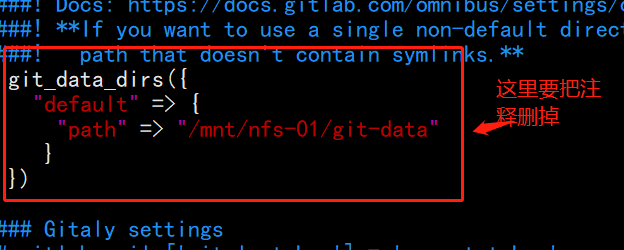
将数据路径的注释去掉,可以更改
开启ssh服务:
初始化Gitlab:
1 [root@git-server ~]# gitlab-ctl reconfigure #重新加载,需要等很长时间
…
…
启动Gitlab服务:
1 [root@git-server ~]# gitlab-ctl start #启动
1 2 3 4 5 如果想要以上的 https 方式正常生效使用,则需要把 letsencrypt 自动生成证书的配置打开,这样在执行重 新让配置生效命令 (gitlab-ctl reconfigure) 的时候会自动给域名生成免费的证书并自动在 gitlab 自带的 nginx 中加上相关的跳转配置,都是全自动的,非常方便。 letsencrypt['enable'] = true letsencrypt['contact_emails'] = ['caryyu@qq.com'] # 这应该是一组要添加为联系人的电子邮件地址
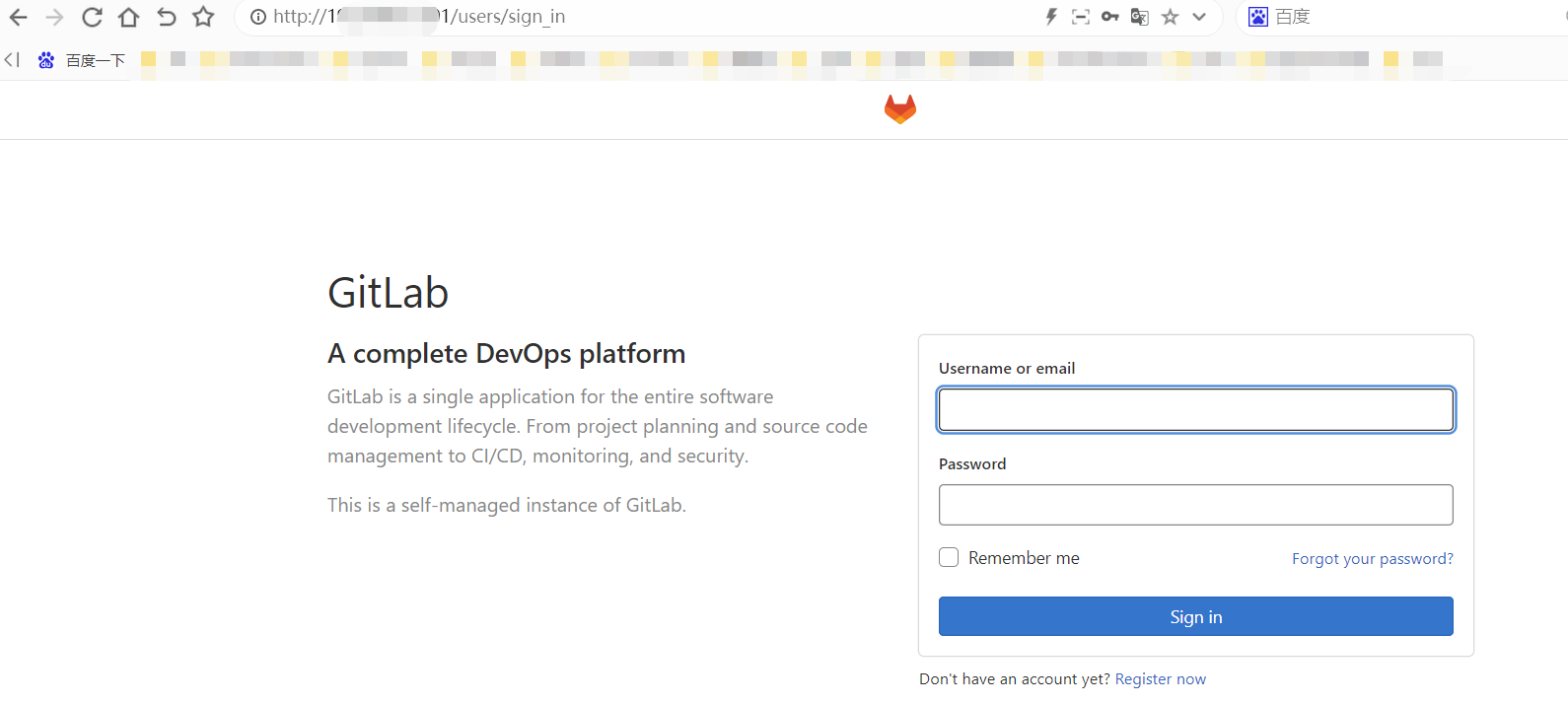
测试访问:http://192.168.246.214
用户为:root
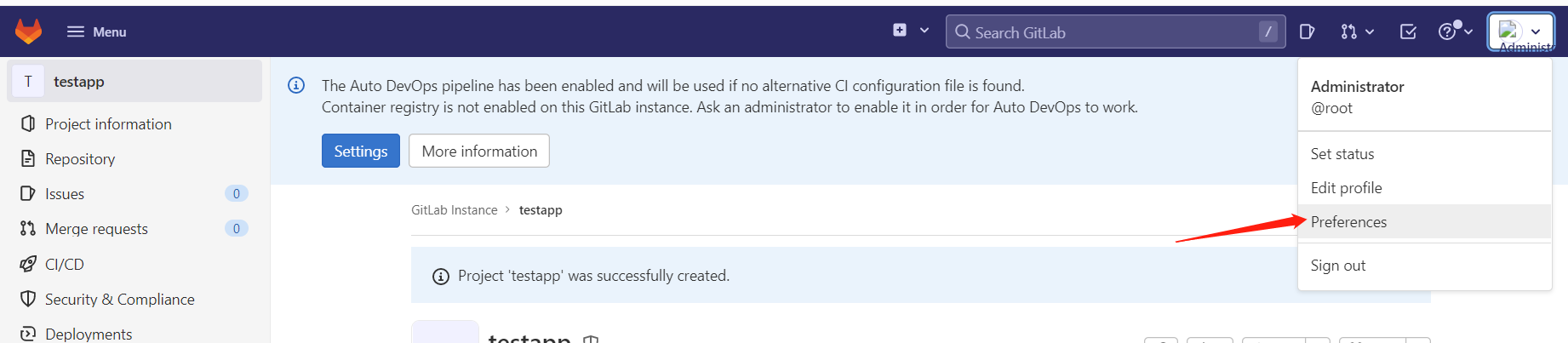
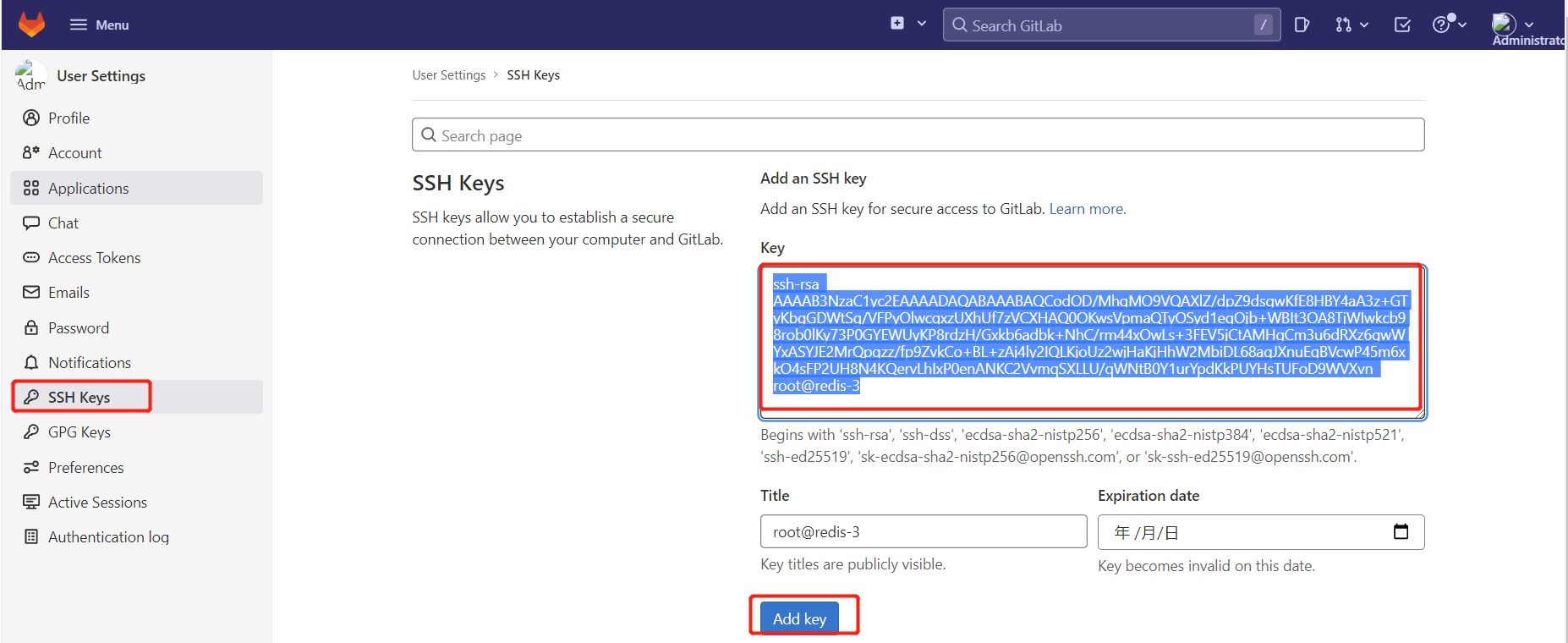
需要创建秘钥
1 2 3 4 5 [root@client ~]# ssh-keygen [root@client ~]# cd .ssh/ [root@client .ssh]# ls [root@client .ssh]# cat id_rsa.pub ssh-rsa AAAAB3NzaC1yc2EAAAADAQABAAABAQC0HeO8gaua13h9HCJK5RXVc/cjet9DpLYq2dqmQ0LXfP0Vwj6YjKxu7lE1i/4Y2cmu5lDe8bG22aikyaW38Fnz0bkGfEurdVZii/KCiHBz2lXS1ocuAdloJT4wnc2MUjh/gwc4FuNkWdYvpbMLXSSHIVjv8vB9YbHlPMTMy5N89kMwMmta5C87/8fBO5VtGijgGOueywM+xAzovlfoJbprV/ZBKkhiskSKz4fHyoGFGwllX3kMkNR/soGF5XXA+/99iO3UqSaloF0UzfUCgqfMfMVB5zDHGIB6uTrMe6ccfKp9gnVyD7m4Zmk7MwouBwAfMLIiHmvekBGXqb1YCTgJ root@client
创建一个文件:
1.newfile:先新建一个文件。
上传一个文件:
新建普通用户
新添加的用户创建成功!
Gitlab新建文件
在git客户端 ssh方式拉取代码
1 2 [root@client ~]# cat /root/.ssh/id_rsa.pub ssh-rsa AAAAB3NzaC1yc2EAAAADAQABAAABAQCodOD/MhqMO9VQAXlZ/dpZ9dsgwKfE8HBY4aA3z+GTyKbgGDWtSg/VFPyOlwcqxzUXhUf7zVCXHAQ0OKwsVpmaQTyOSyd1eqOjb+WBIt3OA8TjWIwkcb98rob0lKy73P0GYEWUyKP8rdzH/Gxkb6adbk+NhC/rm44xOwLs+3FEV5jCtAMHgCm3u6dRXz6gwWYxASYJE2MrQpqzz/fp9ZvkCo+BL+zAj4ly2IQLKjoUz2wjHaKjHhW2MbiDL68aqJXnuEqBVcwP45m6xkO4sFP2UH8N4KQervLhIxP0enANKC2VvmqSXLLU/qWNtB0Y1urYpdKkPUYHsTUFoD9WVXvn root@redis-3
1 2 3 4 5 6 7 8 9 10 11 12 13 [root@client ~]# git clone git@192.168.246.214:root/testapp.git Cloning into 'testapp'... remote: Enumerating objects: 6, done. remote: Counting objects: 100% (6/6), done. remote: Compressing objects: 100% (4/4), done. remote: Total 6 (delta 0), reused 0 (delta 0) Receiving objects: 100% (6/6), done. [root@client ~]# ls testapp [root@client ~]# cd testapp/ [root@client testapp]# ls test.txt 同步时间.txt [root@client testapp]#
http方式拉取代码
1 2 3 4 5 6 7 8 9 10 11 12 13 [root@client ~]# rm -rf testgit/ [root@client ~]# git clone http://192.168.246.214/root/testapp.git Cloning into 'testapp'... Username for 'http://192.168.246.214': root Password for 'http://root@192.168.246.214':12345678 #为自己设置的密码 remote: Enumerating objects: 6, done. remote: Counting objects: 100% (6/6), done. remote: Compressing objects: 100% (4/4), done. remote: Total 6 (delta 0), reused 0 (delta 0) Unpacking objects: 100% (6/6), done. [root@client ~]# ls testapp
提交代码到gitlab仓库 1 2 3 4 5 6 7 8 9 10 11 12 13 14 15 16 17 [root@client testapp]# vim update.txt 1000phone [root@client testapp]# git add . [root@client testapp]# git commit -m "update_version1" [master 091798d] update_version1 1 file changed, 2 insertions(+) create mode 100644 update.txt [root@nginx-server testapp2]# git push origin main Username for 'http://192.168.62.166': root Password for 'http://root@192.168.62.166': Counting objects: 4, done. Compressing objects: 100% (2/2), done. Writing objects: 100% (3/3), 307 bytes | 0 bytes/s, done. Total 3 (delta 0), reused 0 (delta 0) To http://192.168.62.166/root/testapp2.git 201f479..091798d master -> master
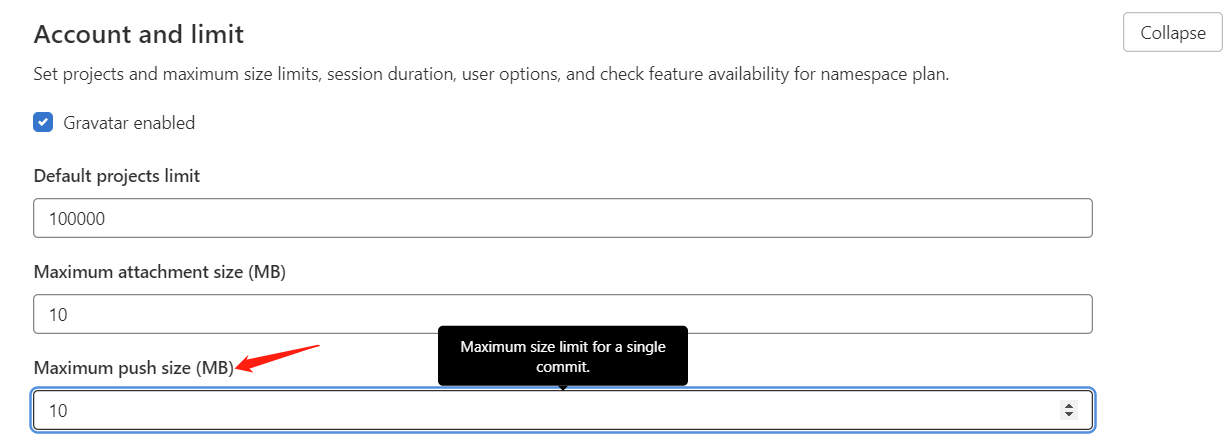
调整上传文件的大小
默认是10M,可根据情况调整
1 2 3 4 5 6 7 8 9 10 11 12 13 14 15 16 拓展: 1.cat /proc/swaps 查看swap分区是否启动(无) 2.创建 : dd if=/dev/zero of=/data/swap bs=512 count=8388616 创建swap大小为bs*count=4294971392(4G); /data/swap目录若无则找/mnt/swap 3.通过mkswap命令将上述空间制作成swap分区: mkswap /data/swap 4.查看内核参数vm.swappiness中的数值是否为0,如果为0则根据实际需要调 整成60: 查看: cat /proc/sys/vm/swappiness 设置: sysctl -w vm.swappiness=60 若想永久修改,则编辑/etc/sysctl.conf文件,改文件中有vm.swappiness变量配置,默认为0 5.启用分区: swapon /data/swap echo “/data/swap swap swap defaults 0 0” >> /etc/fstab 6.再次使用cat /proc/swaps 查看swap分区是否启动
tag版本推送 1 2 3 4 5 6 [root@git-client testweb]# vim e.txt hello eee [root@git-client testweb]# git add * [root@git-client testweb]# git commit -m "new e.txt" [root@git-client testweb]# git tag -a "v1.1" -m "new e.txt" [root@git-client testweb]# git push origin v1.1
分支版本推送 1 2 3 4 5 6 7 8 9 10 11 12 13 14 15 [root@git-client testweb]# git branch dev [root@git-client testweb]# git branch dev * master [root@git-client testweb]# git checkout dev Switched to branch 'dev' [root@git-client testweb]# ls b.txt c.txt d.txt [root@git-client testweb]# vim dev.txt [root@git-client testweb]# git add * [root@git-client testweb]# git commit -m "new dev branch" [dev 6c3fea1] new dev branch 1 file changed, 1 insertion(+) create mode 100644 dev.txt [root@git-client testweb]# git push origin dev
Gitlab 备份与恢复 1、查看系统版本和软件版本 1 2 3 4 5 [root@git-server ~]# cat /etc/redhat-release CentOS Linux release 7.4.1708 (Core) [root@git-server ~]# cat /opt/gitlab/embedded/service/gitlab-rails/VERSION 8.15.4
2、数据备份 打开/etc/gitlab/gitlab.rb配置文件,查看一个和备份相关的配置项:
1 2 3 4 [root@git-server backups]# vim /etc/gitlab/gitlab.rb gitlab_rails['backup_path'] = "/var/opt/gitlab/backups" #备份的路径 gitlab_rails['backup_archive_permissions'] = 0644 #备份文件的默认权限 gitlab_rails['backup_keep_time'] = 604800 #保留时长,秒为单位
设置备份保留时长,防止每天执行备份,肯定有目录被爆满的风险,打开/etc/gitlab/gitlab.rb配置文件,找到如下配置
该项定义了默认备份出文件的路径,可以通过修改该配置,并执行 gitlab-ctl reconfigure 或者 gitlab-ctl restart 重启服务生效。
1 2 3 [root@git-server backups]# gitlab-ctl reconfigure 或者 [root@git-server backups]# gitlab-ctl restart
执行备份命令进行备份
1 [root@git-server backups]# /opt/gitlab/bin/gitlab-rake gitlab:backup:create
也可以添加到 crontab 中定时执行:
1 0 2 * * * /opt/gitlab/bin/gitlab-rake gitlab:backup:create
可以到/var/opt/gitlab/backups找到备份包,解压查看,会发现备份的还是比较全面的,数据库、repositories、build、upload等分类还是比较清晰的。
备份完成,会在备份目录中生成一个当天日期的tar包。
1 [root@git-server ~]# ll /var/opt/gitlab/backups/
3、数据恢复 特别注意:
备份目录和gitlab.rb中定义的备份目录必须一致
GitLab的版本和备份文件中的版本必须一致,否则还原时会报错。
在恢复之前,可以删除一个文件,以便查看效果
执行恢复操作:
1 2 3 [root@git-server ~]# cd /var/opt/gitlab/backups [root@git-server backups]# /opt/gitlab/bin/gitlab-rake gitlab:backup:restore BACKUP=/var/opt/gitlab/backups/1678342140_2023_03_09_15.1.0 注意恢复文件的名称
恢复完成后,启动刚刚的两个服务,或者重启所有服务,再打开浏览器进行访问,发现数据和之前的一致:
注意:通过备份文件恢复gitlab必须保证两台主机的gitlab版本一致,否则会提示版本不匹配
查看gitlab端,可以看到数据恢复成功
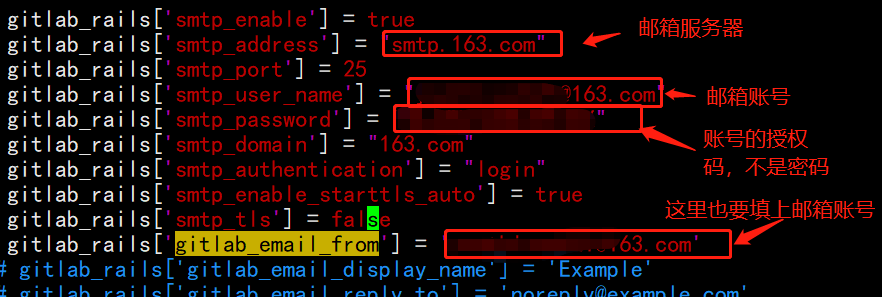
Gitlab配置邮箱 1 2 [root@gitlab-server ~]# vim /etc/gitlab/gitlab.rb QOOJRFWGOZBHQMSQ
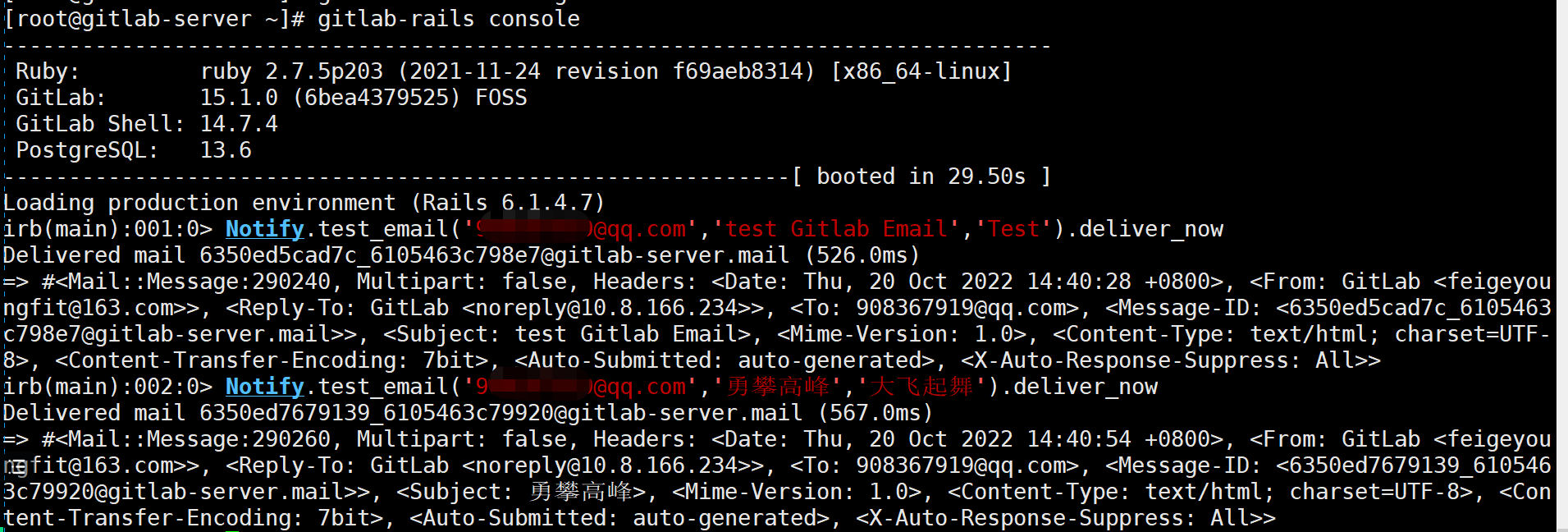
1 2 3 4 5 6 7 [root@gitlab-server ~]# gitlab-ctl reconfigure 或者 [root@gitlab-server ~]# gitlab-ctl restart [root@gitlab ~]# gitlab-rails console irb(main):001:0> Notify.test_email('XXXXXX@gmail.com','test Gitlab Email','Test').deliver_now #输入收件人的邮箱 Delivered mail 610835daa71d5_21d35a645978a@sage.novalocal.mail (40062.2ms)=> #<Mail::Message:173540, Multipart: false, Headers: <Date: Mon, 02 Aug 2021 18:13:46 +0000>, <From: GitLab <xxxxxx@qq.com>>, <Reply-To: GitLab <noreply@xx.xx.4.62>>, <To: xxxxxxx@gmail.com>, <Message-ID: <610835daa71d5_21d35a645978a@sage.novalocal.mail>>, <Subject: test Gitlab Email>, <Mime-Version: 1.0>, <Content-Type: text/html; charset=UTF-8>, <Content-Transfer-Encoding: 7bit>, <Auto-Submitted: auto-generated>, <X-Auto-Response-Suppress: All>> #出现这段报文就说明配置成功
Gitlab配置https方式访问 配置ssl证书 我们可以配置私有CA,也可以在阿里云官网上面购买域名之后获取SSL证书
创建私有CA证书 首先在一台服务器上安装一些需要用到的应用
1、检查安装openssl 1 2 3 4 5 6 [root@www ~]# rpm -qa|grep openssl openssl098e-0.9.8e-29.el7.centos.3.x86_64 openssl-libs-1.0.2k-25.el7_9.x86_64 xmlsec1-openssl-1.2.20-7.el7_4.x86_64 openssl-devel-1.0.2k-25.el7_9.x86_64 openssl-1.0.2k-25.el7_9.x86_64
如果未安装
1 2 3 4 5 6 7 8 9 10 11 12 13 14 [root@www ~]#yum install openssl openssl-devel -y 创建所需要的文件 根CA服务器:因为只有 CA 服务器的角色,所以用到的目录只有/etc/pki/CA 网站服务器:只是证书申请者的角色,所以用到的目录只有/etc/pki/tls [root@www ~]#cd /etc/pki/CA/ [root@www CA]# ls certs crl newcerts private [root@www CA]# touch index.txt #创建生成证书索引数据库文件 [root@www CA]# ls certs crl index.txt newcerts private [root@www CA]# echo 01 > serial #指定第一个颁发证书的序列号 [root@www CA]# ls certs crl index.txt newcerts private serial [root@www CA]#
2、创建密钥 在根CA服务器上创建密钥,密钥的位置必须为/etc/pki/CA/private/cakey.pem,这个是openssl.cnf中中指定的路径,只要与配置文件中指定的匹配即可。
1 2 3 4 5 [root@www CA]# (umask 066; openssl genrsa -out private/cakey.pem 2048) Generating RSA private key, 2048 bit long modulus ...........+++ ...............+++ e is 65537 (0x10001)
3、生成自签名证书 根CA自签名证书,根CA是最顶级的认证机构,没有人能够认证他,所以只能自己认证自己生成自签名证书。
1 2 3 4 5 6 7 8 9 10 11 12 13 14 15 16 17 [root@www CA]# openssl req -new -x509 -key /etc/pki/CA/private/cakey.pem -days 7300 -out /etc/pki/CA/cacert.pem -days 7300 You are about to be asked to enter information that will be incorporated into your certificate request. What you are about to enter is what is called a Distinguished Name or a DN. There are quite a few fields but you can leave some blank For some fields there will be a default value, If you enter '.', the field will be left blank. ----- Country Name (2 letter code) [XX]:CN State or Province Name (full name) []:BEIJING Locality Name (eg, city) [Default City]:BEIJING Organization Name (eg, company) [Default Company Ltd]:CA Organizational Unit Name (eg, section) []:OPT Common Name (eg, your name or your server's hostname) []:ca.qf.com Email Address []: [root@www CA]# ls cacert.pem certs crl index.txt newcerts private serial
客户端(gitlab服务器)CA证书申请域名 1、安装openssl 1 [root@gitlab ~]# yum install openssl openssl-devel -y
2、客户端生成密钥文件 1 2 3 4 5 6 7 8 9 [root@gitlab ~]# (umask 066; openssl genrsa -out /etc/pki/tls/private/www.git123.com.key 2048) Generating RSA private key, 2048 bit long modulus ..............................+++ ..........+++ e is 65537 (0x10001) [root@gitlab ~]# cd /etc/pki/tls/private/ [root@gitlab private]# ls www.git123.com.key [root@gitlab private]#
3、客户端用私钥加密生成证书请求 1 2 3 4 5 6 7 8 9 10 11 12 13 14 15 16 17 18 19 20 21 22 23 24 25 [root@gitlab private]# ls ../ cert.pem certs misc openssl.cnf private [root@gitlab private]# openssl req -new -key /etc/pki/tls/private/www.qf.com.key -days 365 -out /etc/pki/tls/www.qf.com.csr You are about to be asked to enter information that will be incorporated into your certificate request. What you are about to enter is what is called a Distinguished Name or a DN. There are quite a few fields but you can leave some blank For some fields there will be a default value, If you enter '.', the field will be left blank. ----- Country Name (2 letter code) [XX]:CN State or Province Name (full name) []:BEIJING Locality Name (eg, city) [Default City]:BEIJING Organization Name (eg, company) [Default Company Ltd]:QF Organizational Unit Name (eg, section) []:OPT Common Name (eg, your name or your server's hostname) []:www.git123.com Email Address []: Please enter the following 'extra' attributes to be sent with your certificate request A challenge password []: An optional company name []: [root@gitlab private]# ls ../ cert.pem certs misc openssl.cnf private www.git123.com.csr [root@gitlab private]#
4、CA 签署证书 (在ca服务器上面操作)
1 2 3 4 5 6 7 8 9 10 11 [root@www ~]# vim /etc/pki/tls/openssl.cnf policy = policy_match 82 83 # For the CA policy 84 [ policy_match ] 85 countryName = match 86 stateOrProvinceName = match 87 organizationName = supplied 88 organizationalUnitName = optional 89 commonName = supplied 90 emailAddress = optional
CA签署证书
1 2 3 4 5 6 7 8 9 10 11 12 13 14 15 16 17 18 19 20 21 22 23 24 25 26 27 28 29 30 31 32 [root@www ~]# openssl ca -in /etc/pki/CA/private/www.git123.com.csr -out /etc/pki/CA/certs/www.git123.com.crt -days 365 Using configuration from /etc/pki/tls/openssl.cnf Check that the request matches the signature Signature ok Certificate Details: Serial Number: 1 (0x1) Validity Not Before: Jul 3 10:12:23 2019 GMT Not After : Jul 2 10:12:23 2020 GMT Subject: countryName = CN stateOrProvinceName = BEIJING organizationName = QF organizationalUnitName = OPT commonName = www.qf.com X509v3 extensions: X509v3 Basic Constraints: CA:FALSE Netscape Comment: OpenSSL Generated Certificate X509v3 Subject Key Identifier: E3:AC:1A:55:2B:28:B9:80:DC:9C:C2:13:70:53:27:AD:3D:44:8F:D3 X509v3 Authority Key Identifier: keyid:5D:2A:81:B2:E7:8D:D8:88:E5:7B:94:CA:75:65:9C:82:2B:A9:B2:3C Certificate is to be certified until Jul 2 10:12:23 2020 GMT (365 days) Sign the certificate? [y/n]:y 1 out of 1 certificate requests certified, commit? [y/n]y Write out database with 1 new entries Data Base Updated
查看证书的信息 1 2 [root@www ~]# openssl x509 -in /etc/pki/CA/certs/www.qf.com.crt -noout -subject subject= /C=CN/ST=BEIJING/O=QF/OU=OPT/CN=www.git123.com
将生成的证书发放给请求客户端(Gitlab服务器) 1 2 [root@www ~]# cd /etc/pki/CA/certs/ [root@www certs]# scp www.git123.com.ctr 10.8.156.42:/etc/pki/CA/certs/
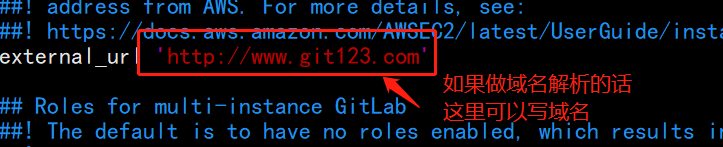
Gitlab中修改配置
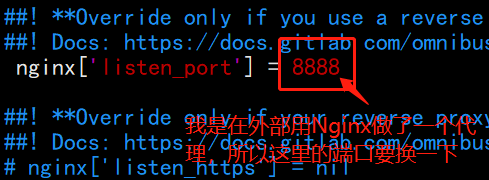
在gitlab前面配置Nginx做转发 首先把gitlab内部nginx的端口修改一下
1 vim /etc/nginx/conf.d/default.conf
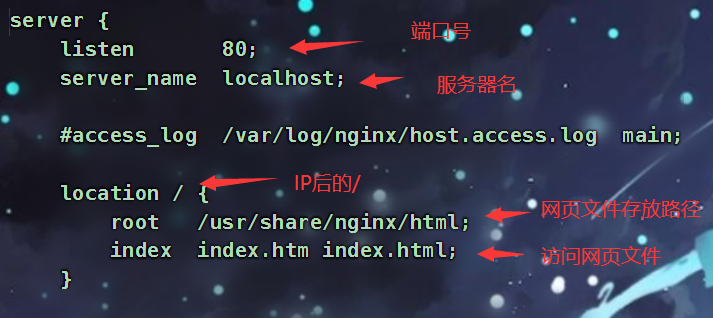
1 2 3 4 5 6 7 8 9 10 11 12 13 14 15 16 17 18 19 20 21 22 23 24 25 26 27 28 29 30 31 32 33 34 35 36 upstream git{ server 127.0.0.1:8888; } server { listen 443 ssl; server_name www.git123.com; ssl_certificate /etc/pki/CA/certs/www.git123.com.crt; ssl_certificate_key /etc/pki/tls/private/www.git123.com.key; ssl_session_timeout 5m; ssl_ciphers ECDHE-RSA-AES128-GCM-SHA256:ECDHE:ECDH:AES:HIGH:!NULL:!aNULL:!MD5:!ADH:!RC4; ssl_protocols TLSv1 TLSv1.1 TLSv1.2; ssl_prefer_server_ciphers on; location / { client_max_body_size 50m; proxy_redirect off; proxy_set_header Host $host; proxy_set_header X-Real-IP $remote_addr; proxy_set_header X-Forwarded-For $proxy_add_x_forwarded_for; proxy_pass http://git; index index.html index.htm; } } server{ listen 80; server_name www.git123.com; rewrite ^(.*)$ https://$host$1 permanent; location / { return 301 https://www.git123.com:443$request_uri; } }
Github 远程仓库 1、github.com 注册账户908367919@qq.com
3、客户端生成本地ssh key
1 2 3 4 5 6 7 8 9 10 11 12 13 14 15 16 17 18 19 20 21 22 23 24 [root@localhost ~]# ssh-keygen -t rsa -C 'meteor@163.com' # 邮箱要与github上注册的相同 Generating public/private rsa key pair. Enter file in which to save the key (/root/.ssh/id_rsa): Enter passphrase (empty for no passphrase): Enter same passphrase again: Your identification has been saved in /root/.ssh/id_rsa. Your public key has been saved in /root/.ssh/id_rsa.pub. The key fingerprint is: SHA256:RiE6UR1BtzV5avyE2uz6TNPsVHa2D2eHprghrJEkd/g meteor@163.com The key's randomart image is: +---[RSA 2048]----+ | ..oo=o. o. | | o ..o o... | | o . .. + | | . o = . | | . + S = o =| | + * . oo.=o| | o E ..o B.+| | o . =.* +o| | . +++ . .| +----[SHA256]-----+ [root@localhost ~]# [root@localhost ~]# cat .ssh/id_rsa.pub ssh-rsa AAAAB3NzaC1yc2EAAAADAQABAAABAQDVThfq4brrlsPGtAknVB0TLPx+7Dd3qlxTbSIrUOsGC5Y8JuNqVTlIntZB4oNj8cSQrWvec9CKm0a8o7WwaJIiqpxurz+YpQHP2KbapftKIxsX4hPf/z+p0El1U6arQa35/xmNsq+cJLH/bDdRG+EMDhuCBmjVZOlLj/hEdeIT6s56AnnCkaWoF+sq58KCF7Tk54jRbs/YiyE4SN7FuA70r+07sA/uj0+lmuk4E190KtQUELhjX/E9stivlqiRhxnKvVUqXDywsjfM8Rtvbi4Fg9R8Wt9fpd4QwnWksYUoR5qZJFYXO4hSZrUnSMruPK14xXjDJcFDcP2eHIzKgLD1 meteor@163.com
4、复制以上的公钥,在github 中添加ssh key
创建好库之后,在库里创建几个文件,方便测试
5、测试:拉取github仓库
1 2 3 4 5 6 [root@localhost ~]# yum install git [root@localhost ~]# git config --global user.name 'meteor_by' [root@localhost ~]# git config --global user.email 'meteor@163.com' [root@localhost tmp]# cd /tmp [root@localhost tmp]# git clone git@github.com:youngfit/youngfit.git
7、在本地添加远程仓库,并推送至github仓库
1 2 3 4 5 6 7 8 9 10 11 12 13 14 15 16 17 18 19 20 [root@localhost tmp]# cd /tmp/youngfit/ [root@localhost youngfit]# ls qf.txt README.md [root@localhost youngfit]# cat qf.txt this is 2002 test file [root@client youngfit]# ls qf.txt README.md [root@localhost youngfit]# vim a.txt [root@localhost youngfit]# git add . [root@localhost youngfit]# git commit -m "yufei" [master 0f6a3de] yufei 1 file changed, 2 insertions(+) create mode 100644 a.txt [root@client youngfit]# git push origin master Counting objects: 4, done. Compressing objects: 100% (2/2), done. Writing objects: 100% (3/3), 288 bytes | 0 bytes/s, done. Total 3 (delta 0), reused 0 (delta 0) To git@github.com:youngfit/youngfit.git ba8225d..0f6a3de master -> master
去github界面查看
8、连接远程仓库方法
1 2 3 4 5 6 7 8 9 10 11 12 13 14 15 16 17 18 19 20 21 22 23 24 25 26 27 28 29 30 31 32 33 34 35 36 37 38 # [root@localhost testapp] # origin git@github.com:meteor/python1804.git (fetch) # origin git@github.com:meteor/python1804.git (push) # [root@localhost python1804] # [root@localhost python1804] # [root@localhost ~] # 或 # git remote add origin https://github.com/meteor/python1804.git # git push -u origin master [root@client youngfit]# git remote -v origin git@github.com:youngfit/youngfit.git (fetch) origin git@github.com:youngfit/youngfit.git (push) [root@client youngfit]# git remote rm origin [root@client youngfit]# git remote add origin git@192.168.62.131:root/testapp.git [root@client youngfit]# ls a.txt qf.txt README.md [root@client youngfit]# pwd [root@client ~]# cd /root/testapp/ [root@client testapp]# ls test.sql test.txt update.txt [root@client testapp]# vim modify.txt [root@client testapp]# git add . [root@client testapp]# git commit -m "modify gitlab from github" [master fde12c2] modify gitlab from github 1 file changed, 1 insertion(+) create mode 100644 modify.txt [root@client testapp]# git push origin master Username for 'http://192.168.62.131': root Password for 'http://root@192.168.62.131': Counting objects: 4, done. Compressing objects: 100% (2/2), done. Writing objects: 100% (3/3), 337 bytes | 0 bytes/s, done. Total 3 (delta 0), reused 0 (delta 0) To http://192.168.62.131/root/testapp.git 23bae45..fde12c2 master -> master
去自己部署的gitlab上查看



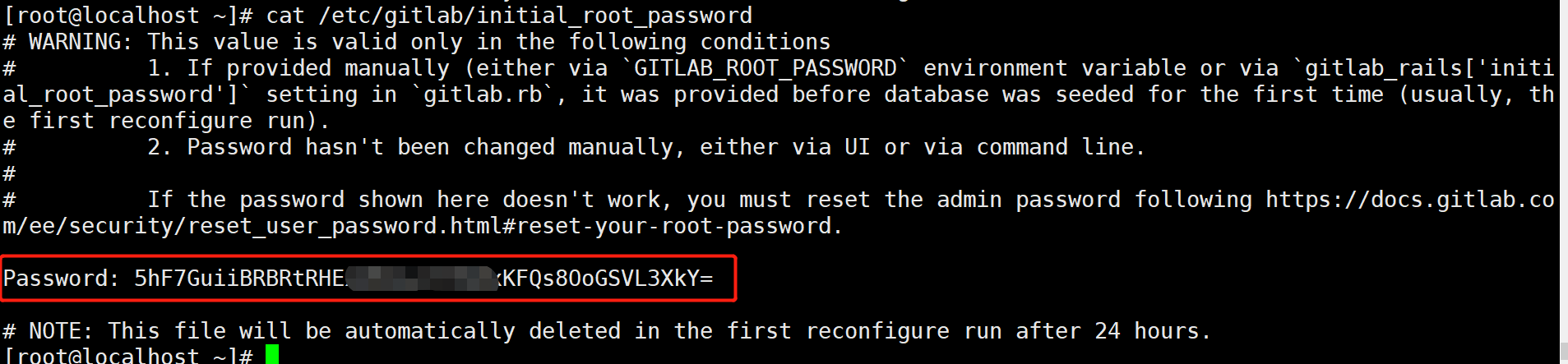
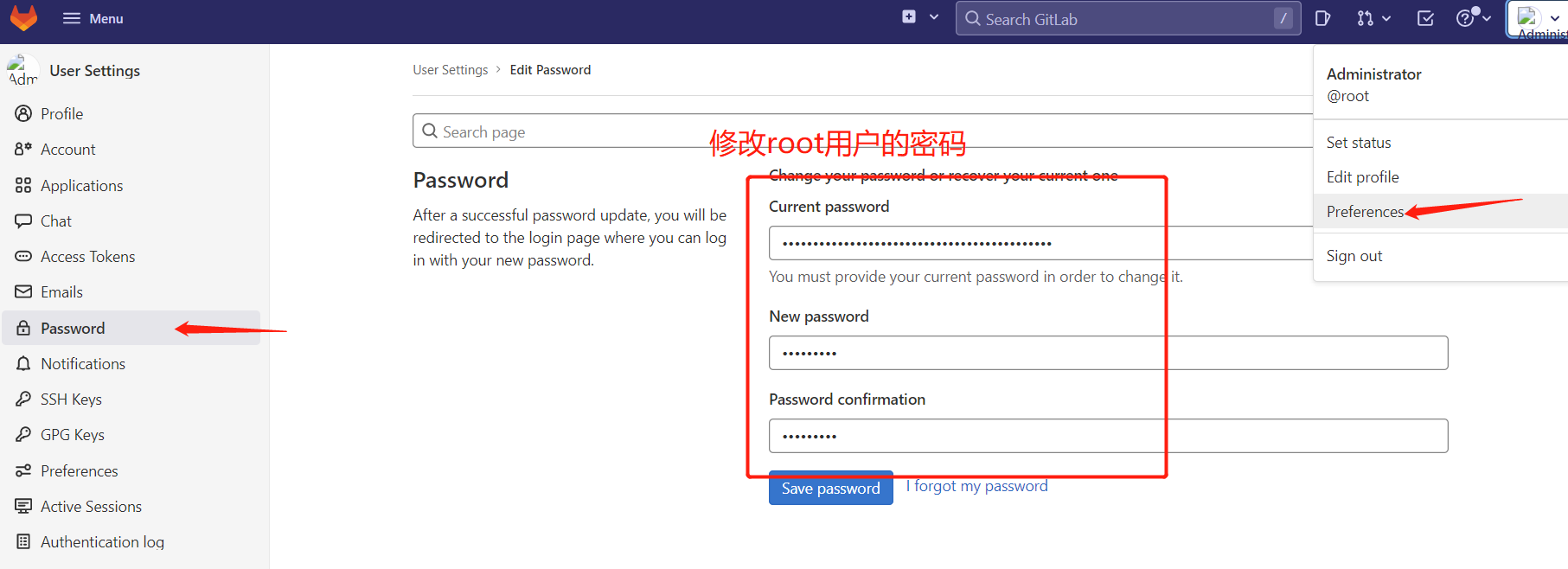








 )
)