[TOC]

1、简介

GitLab 是一个综合性的 DevOps 平台,主要用于代码存储和项目管理。它集成了 Git 仓库管理、持续集成和持续交付(CI/CD)、项目管理、安全性等多种功能。

2、功能

  • 提供 Git 仓库托管服务,支持分支管理、代码审查和合并请求。
  • 提供详细的代码历史记录和变更日志,方便开发人员跟踪代码变动。
  • 持续集成(CI),自动化构建、测试和集成代码 。

    3、Gitlab安装

1
2
3
4
5
[root@gitlab ~]# ls
gitlab-ce-12.6.3-ce.0.el7.x86_64.rpm

# 安装Gitlab
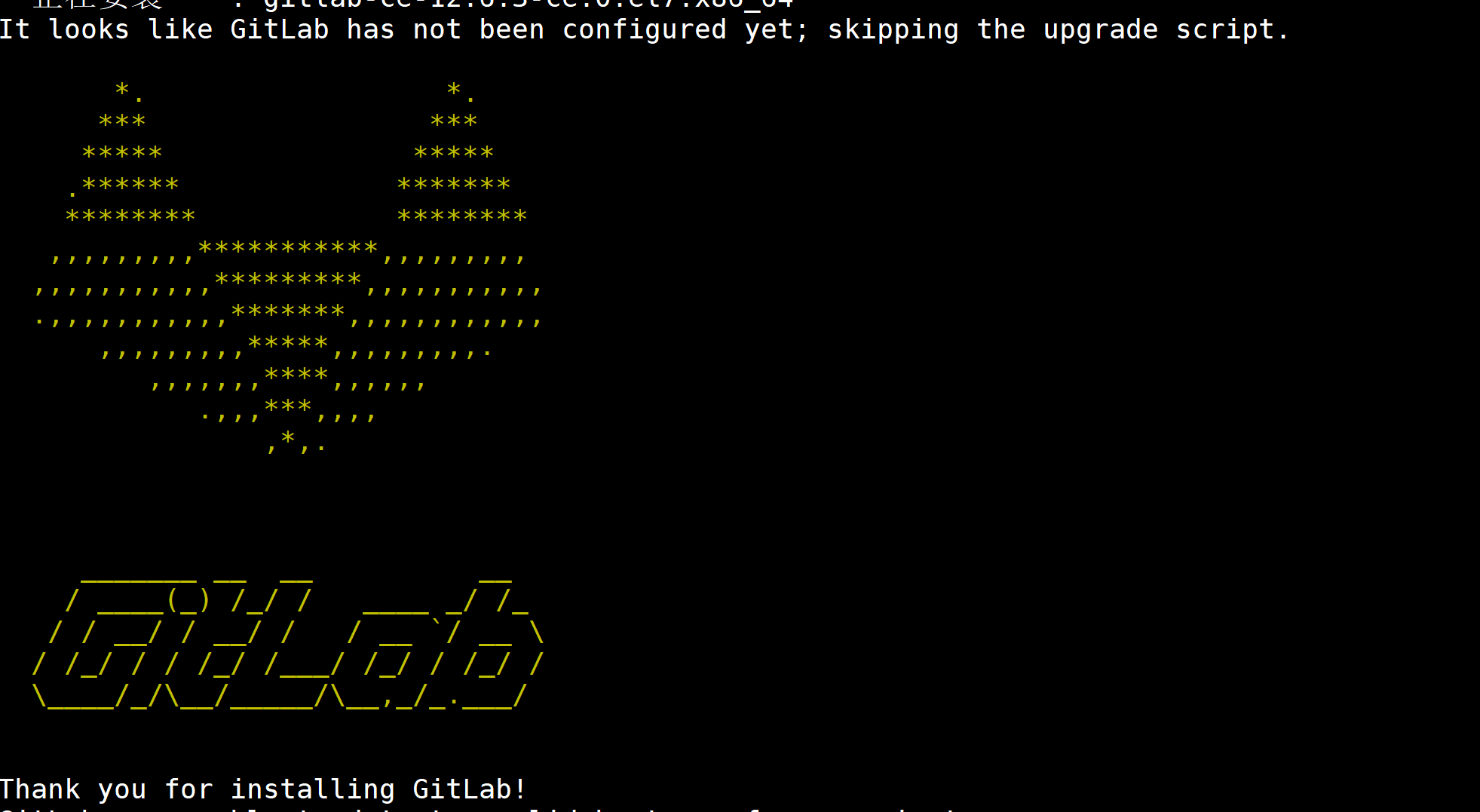
[root@gitlab ~]# yum localinstall -y gitlab-ce-12.6.3-ce.0.el7.x86_64.rpm

1
2
3
4
5
6
7
8
9
10
11
12
13
14
15
16
17
18
19
20
21
22
23
24
25
26
27
28
29
30
31
32
33
34
35
36
37
38
39
40
41
42
43
44
45
46
# 创建ssl证书存放路径
[root@gitlab ~]# mkdir /etc/gitlab/ssl
# 上传证书
[root@gitlab ssl]# ll /etc/gitlab/ssl/privkey.pem
-rw-r--r--. 1 root root 241 6月 4 20:32 /etc/gitlab/ssl/privkey.pem
[root@gitlab ssl]# ll /etc/gitlab/ssl/fullchain.pem
-rw-r--r--. 1 root root 3306 6月 4 20:32 /etc/gitlab/ssl/fullchain.pem

# 修改配置文件
[root@gitlab ~]# egrep -v "^(#|$)" /etc/gitlab/gitlab.rb
# 定义 GitLab 实例的外部访问 URL。用户通过此 URL 访问 GitLab 界面。
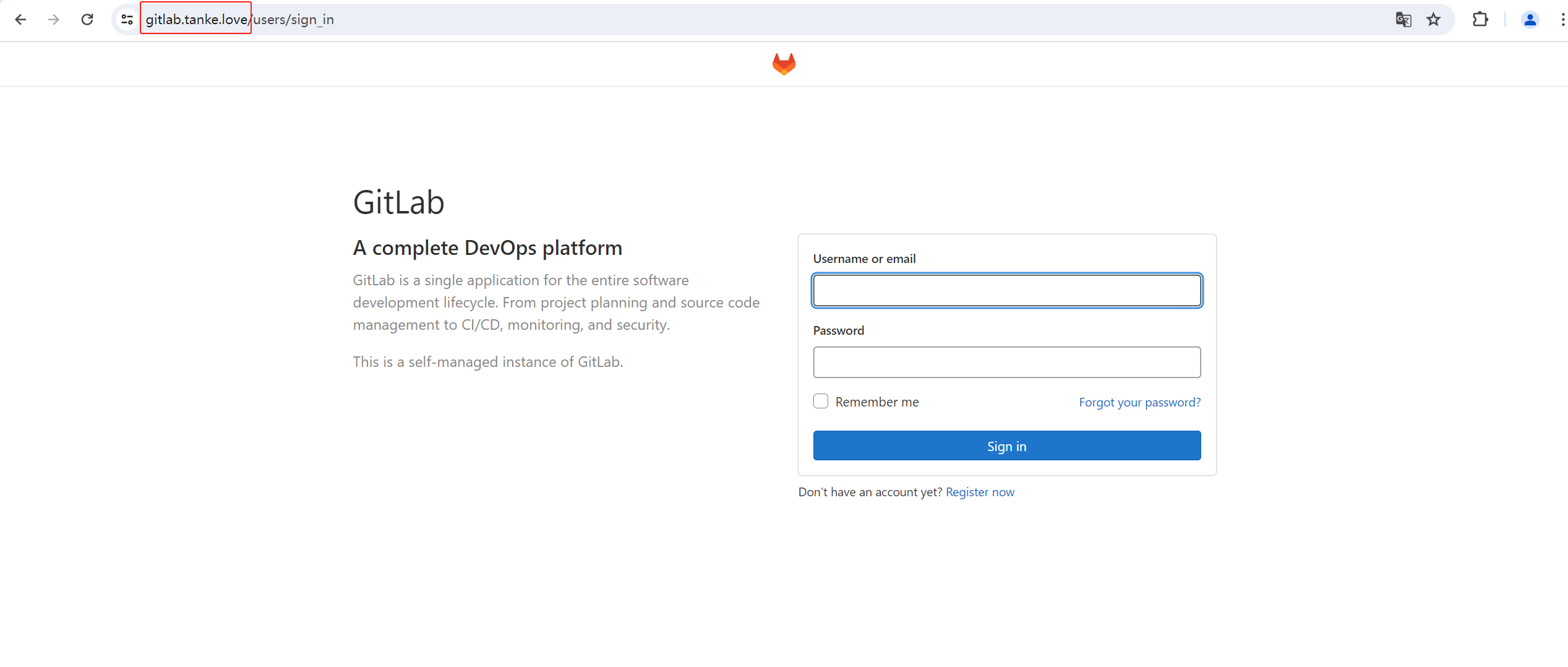
external_url 'https://gitlab.tanke.love'
# 设置 GitLab 的时区为 "Asia/Shanghai"。这影响到 GitLab 中时间显示的区域设置。
gitlab_rails['time_zone'] = 'Asia/Shanghai'
# 定义 Git 数据存储的路径。
git_data_dirs({
"default" => {
"path" => "/mnt/nfs-01/git-data"
}
})
# 设置 GitLab Shell 使用的 SSH 端口。
gitlab_rails['gitlab_shell_ssh_port'] = 22
# 启用 Nginx,GitLab 使用 Nginx 作为 Web 服务器。
nginx['enable'] = true
# 设置最大请求体大小为 250MB
nginx['client_max_body_size'] = '250m'
# 启用 HTTP 到 HTTPS 的重定向,确保所有流量通过 HTTPS。
nginx['redirect_http_to_https'] = true
# 设置重定向端口为 80。
nginx['redirect_http_to_https_port'] = 80
# 指定 SSL 证书和密钥的位置,用于 HTTPS。
nginx['ssl_certificate'] = "/tmp/fullchain.pem"
nginx['ssl_certificate_key'] = "/tmp/privkey.pem"
nginx['ssl_ciphers'] = "ECDHE-ECDSA-AES128-GCM-SHA256:ECDHE-RSA-AES128-GCM-SHA256:ECDHE-ECDSA-AES256-GCM-SHA384:ECDHE-RSA-AES256-GCM-SHA384:ECDHE-ECDSA-CHACHA20-POLY1305:ECDHE-RSA-CHACHA20-POLY1305:DHE-RSA-AES128-GCM-SHA256:DHE-RSA-AES256-GCM-SHA384"
nginx['ssl_prefer_server_ciphers'] = "off"
# 定义支持的 SSL/TLS 协议版本。
nginx['ssl_protocols'] = "TLSv1.2 TLSv1.3"
# 配置 SSL 会话缓存,提高性能。
nginx['ssl_session_cache'] = "shared:SSL:10m"
# 超时时间。
nginx['ssl_session_timeout'] = "1d"
# 启用 Gzip 压缩,提高传输效率。
nginx['gzip_enabled'] = true

# 重新加载配置
[root@gitlab ~]# gitlab-ctl reconfigure

image.png

1
2
3
4
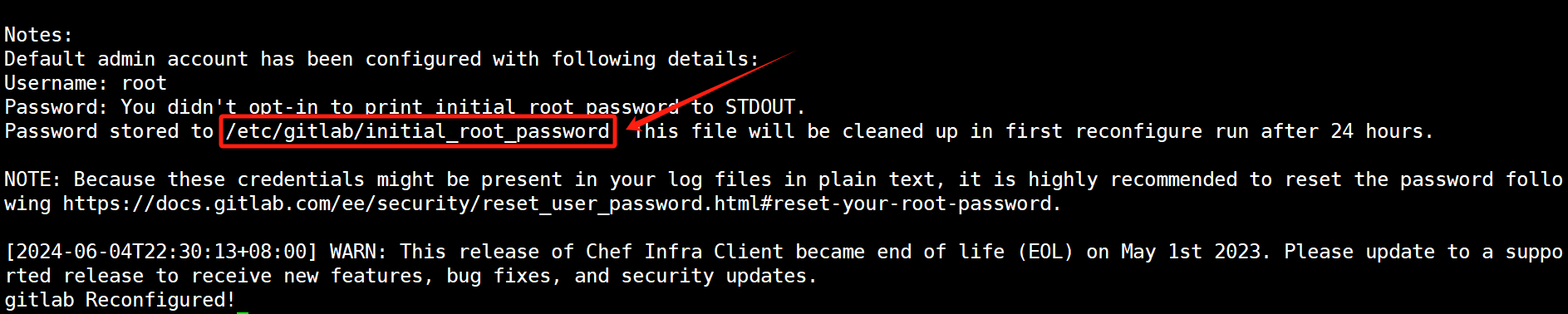
[root@localhost ~]# cat /etc/gitlab/initial_root_password #密码存放地

# 启动实例
[root@localhost ~]# gitlab-ctl start

image.png
image.png
image.png

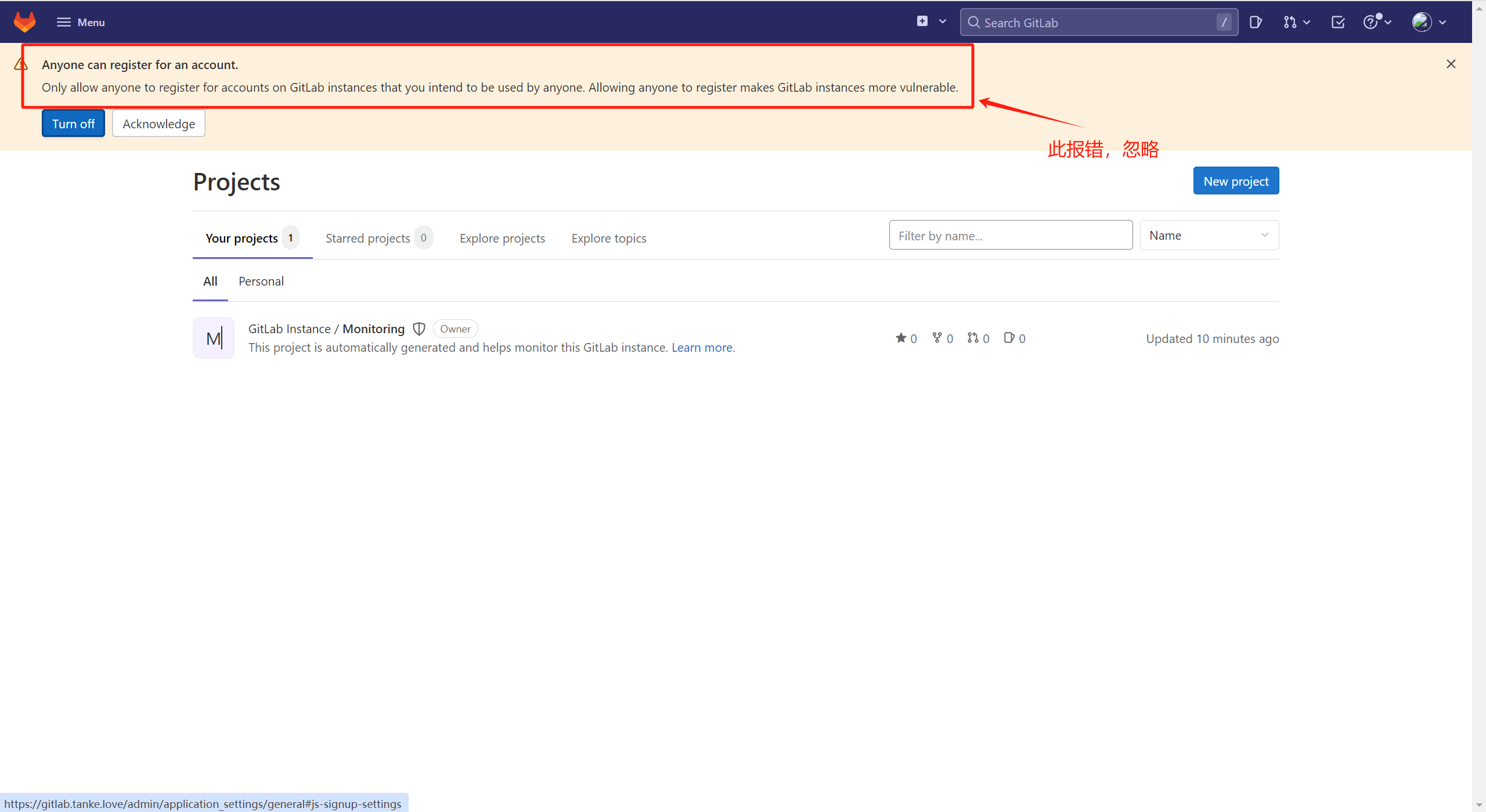
任何人都可以注册帐户。
只允许任何人在GitLab实例上注册您打算供任何人使用的帐户。允许任何人注册会使GitLab实例更容易受到攻击。

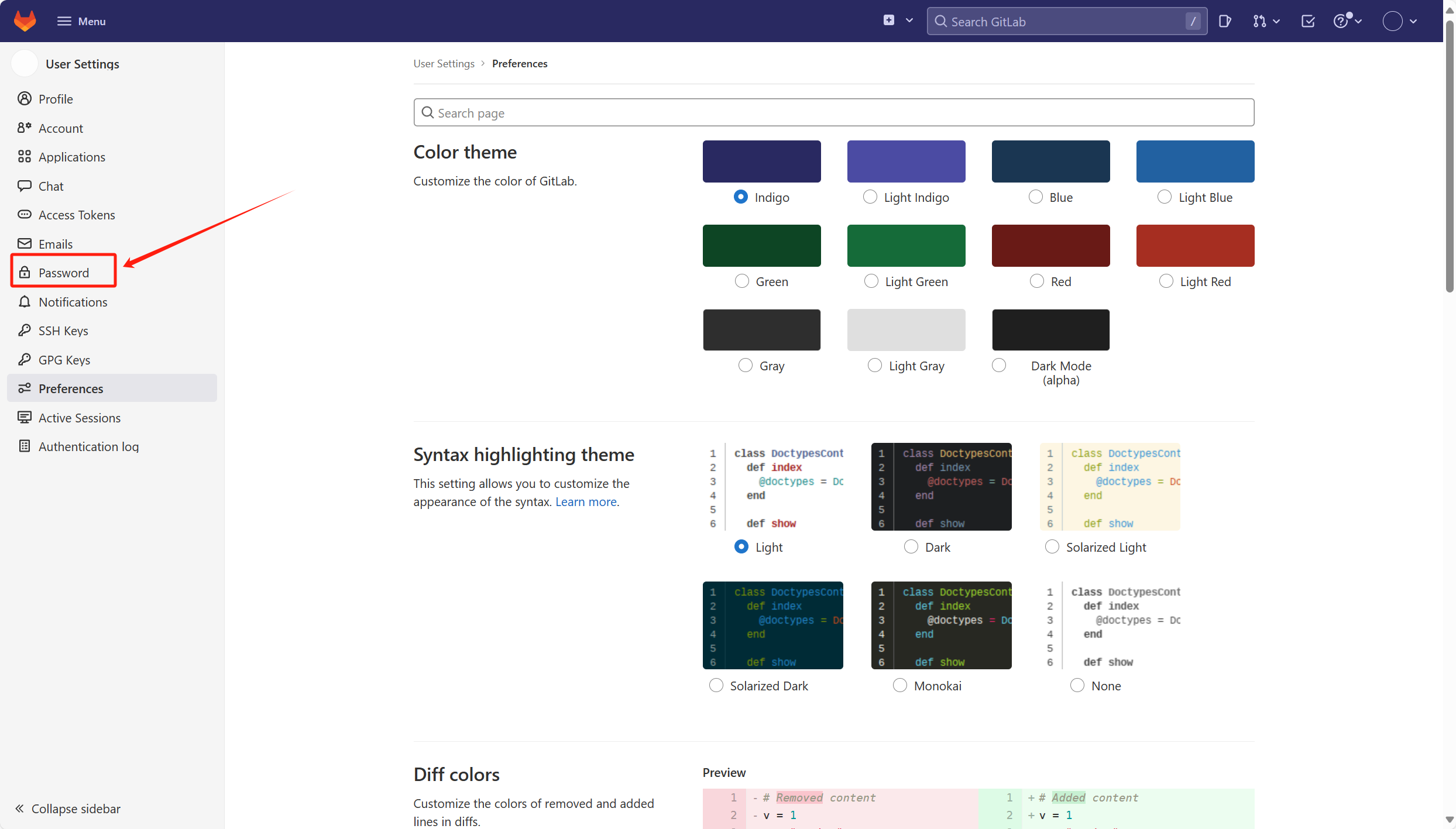
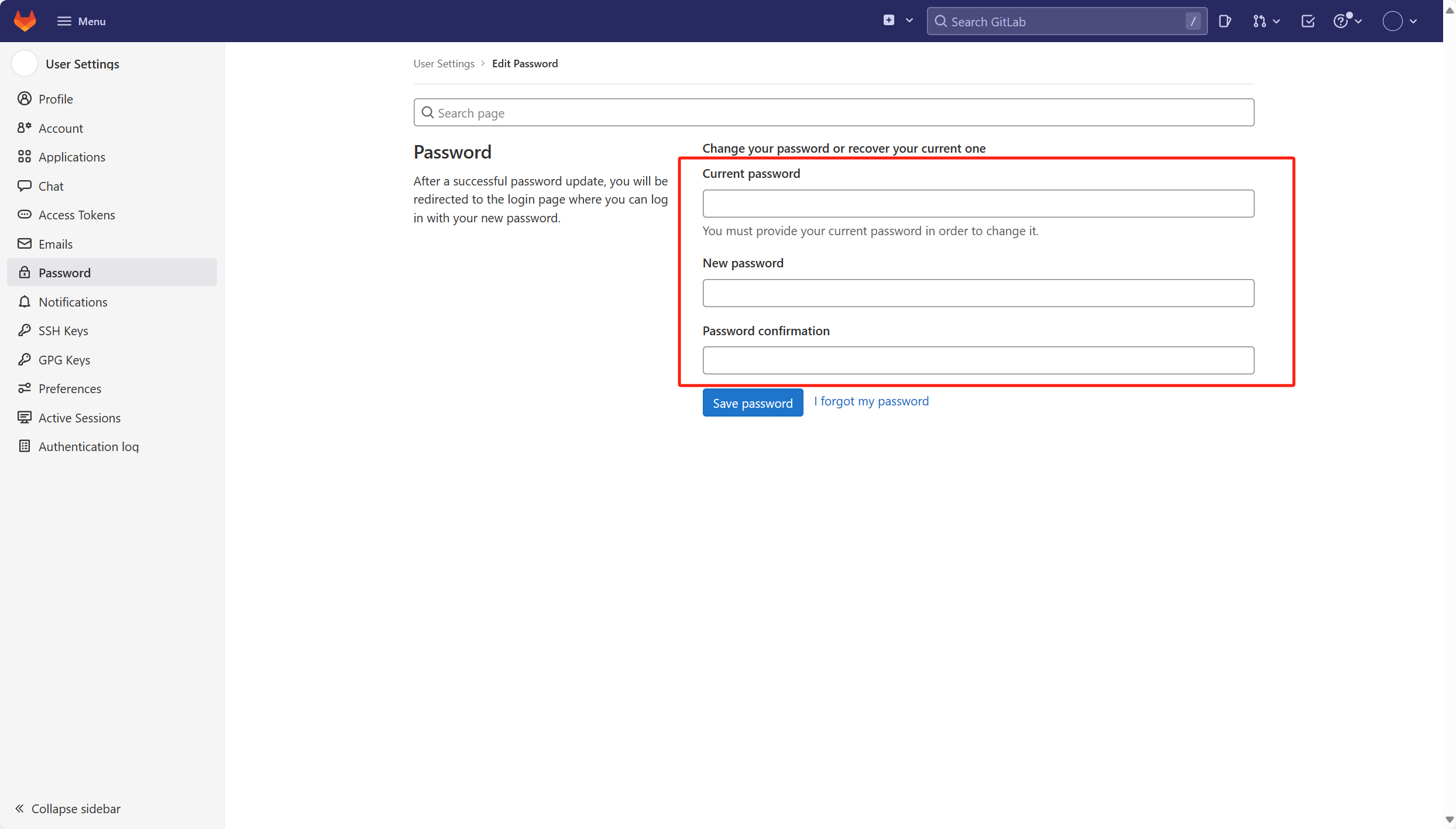
更改Root密码
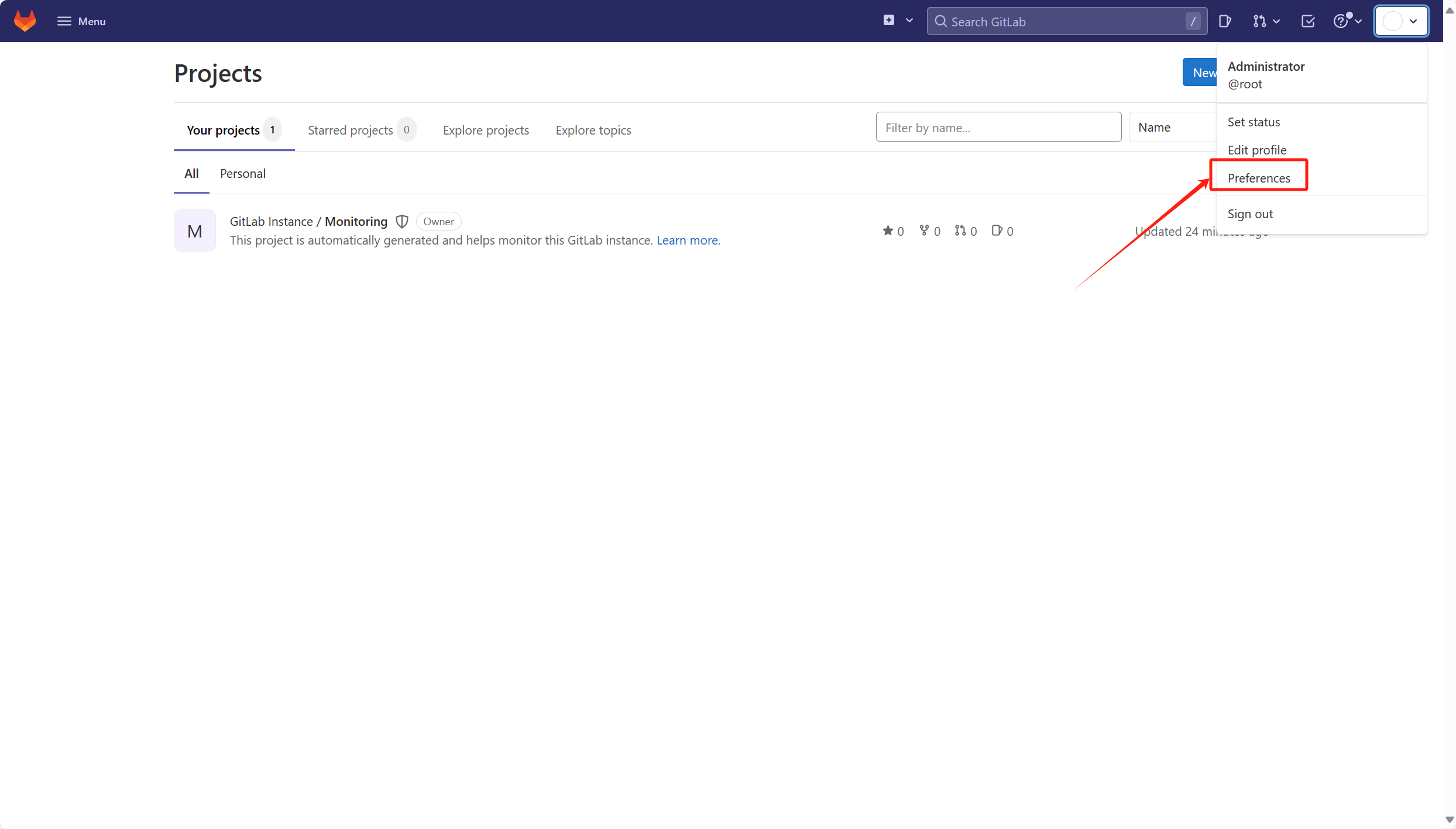
image.png
image.png
image.png

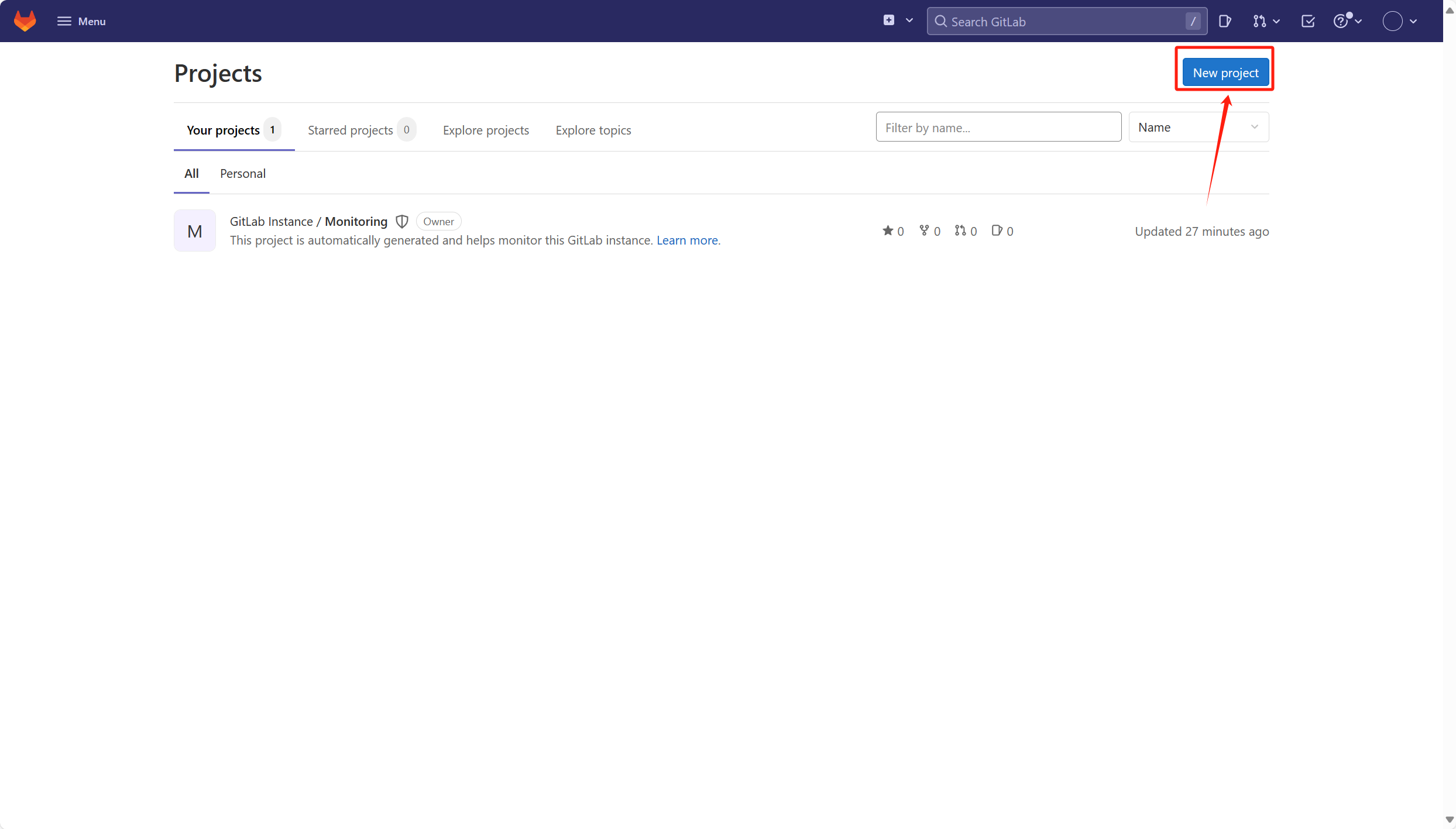
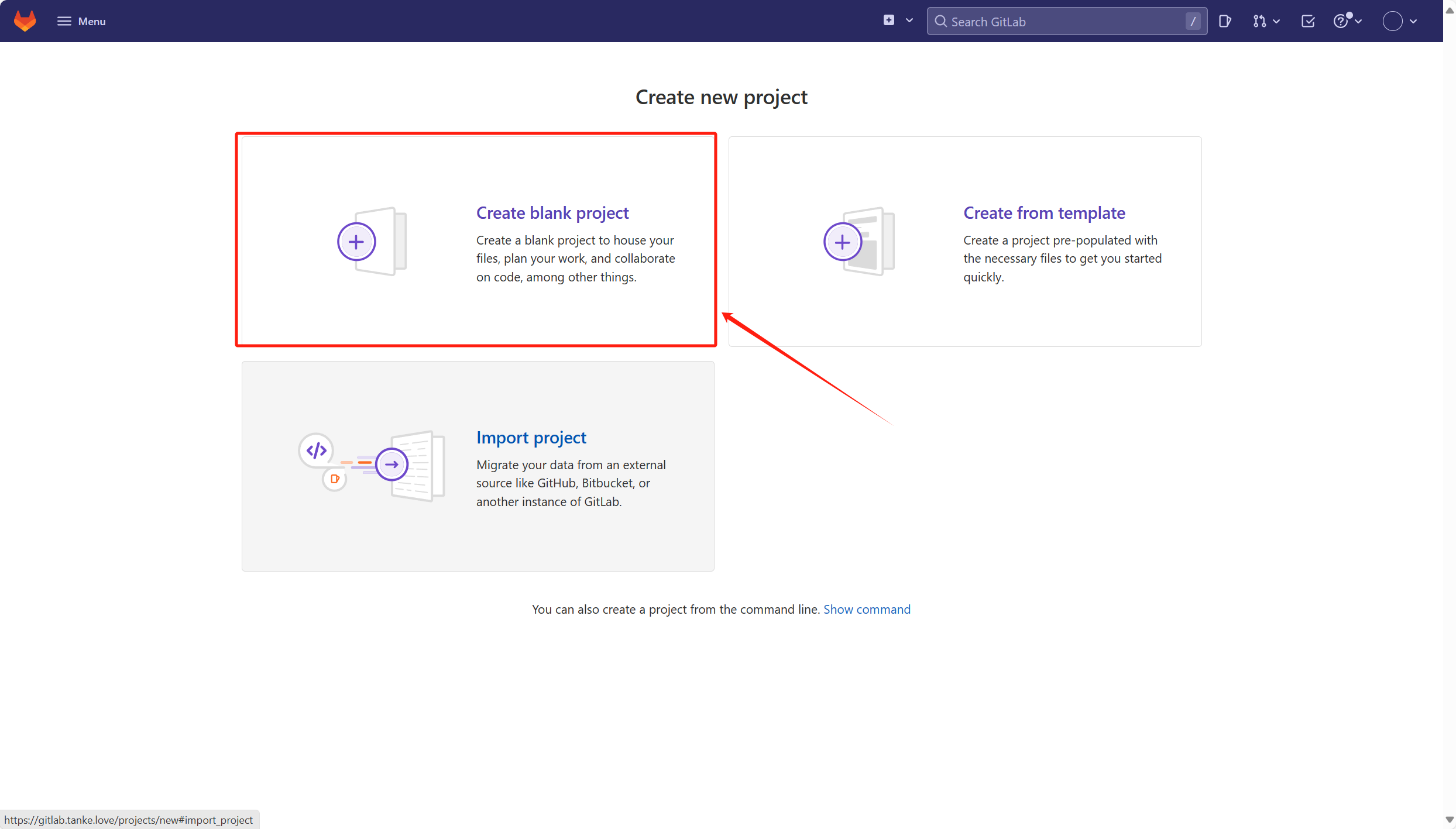
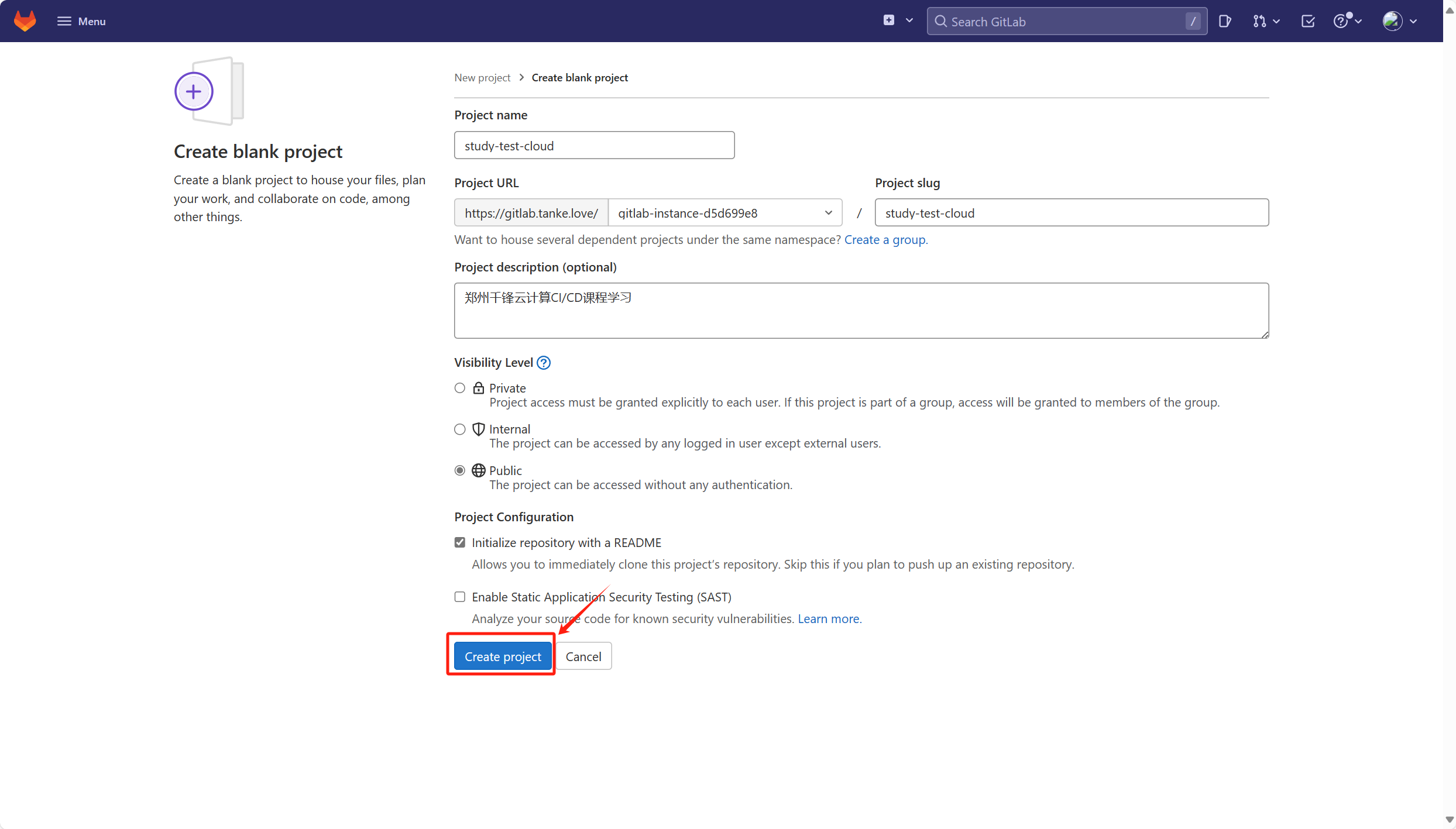
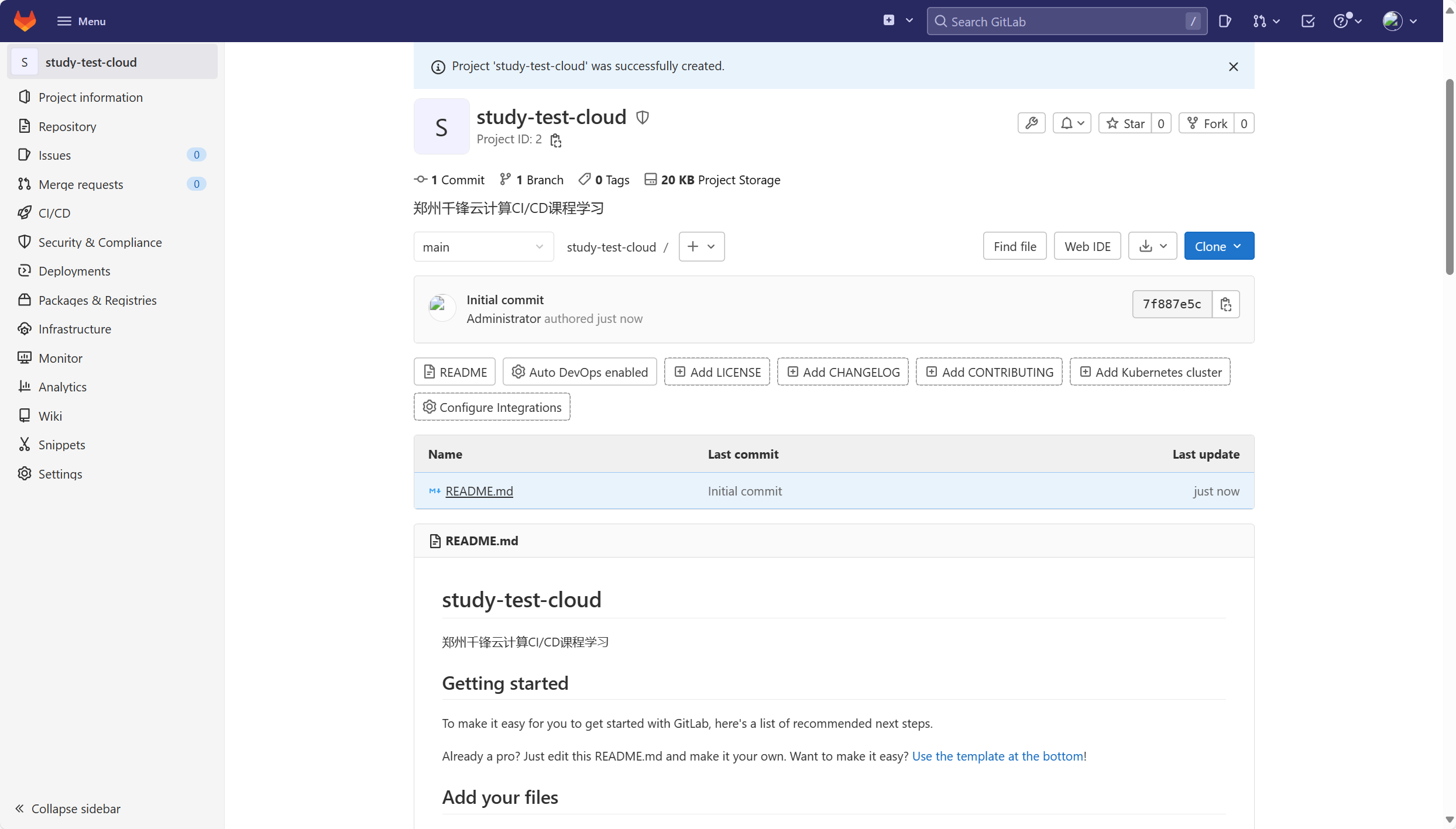
创建新项目

image.png
image.png
image.png
image.png

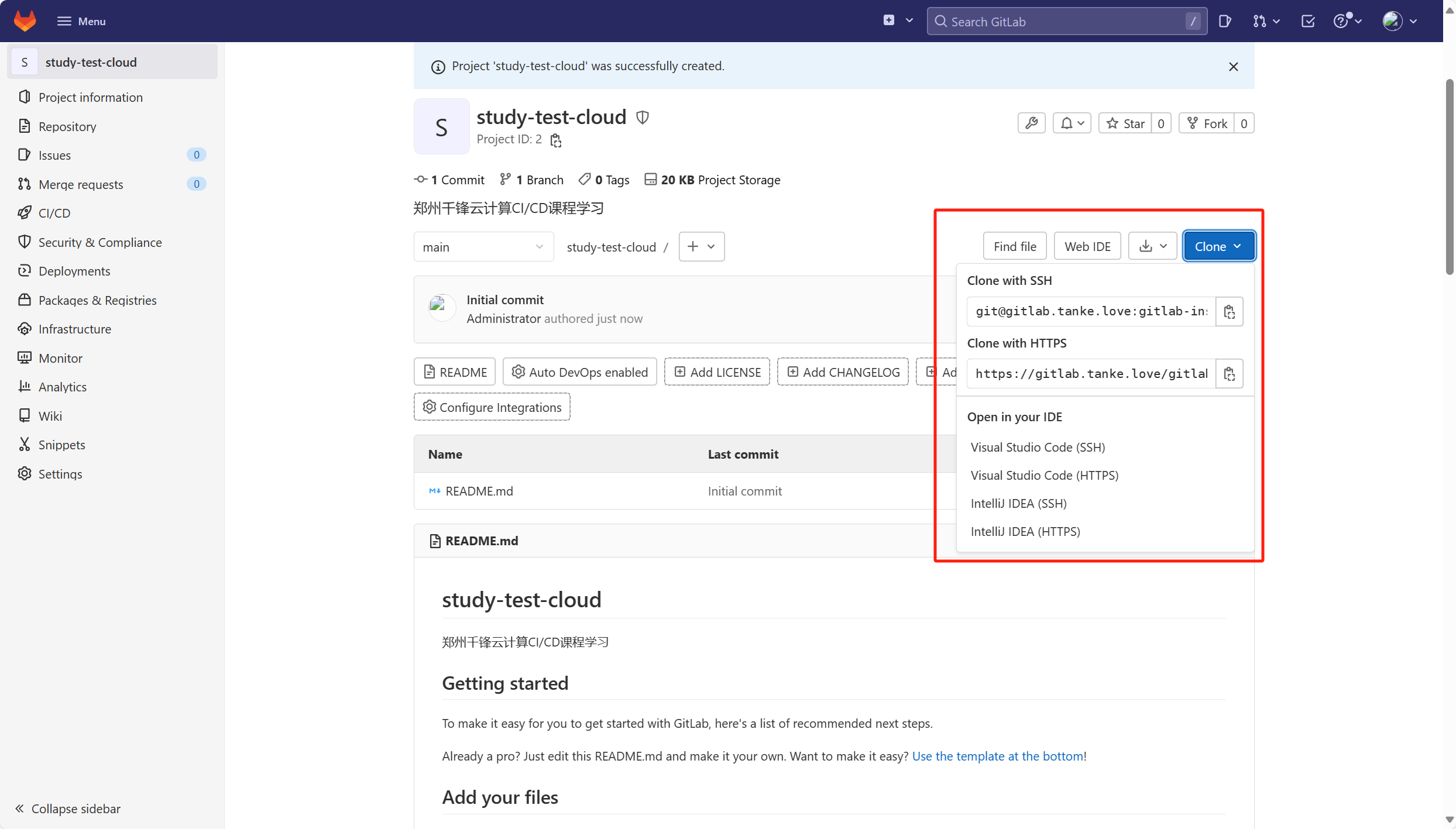
拉取项目代码仓库

image.png

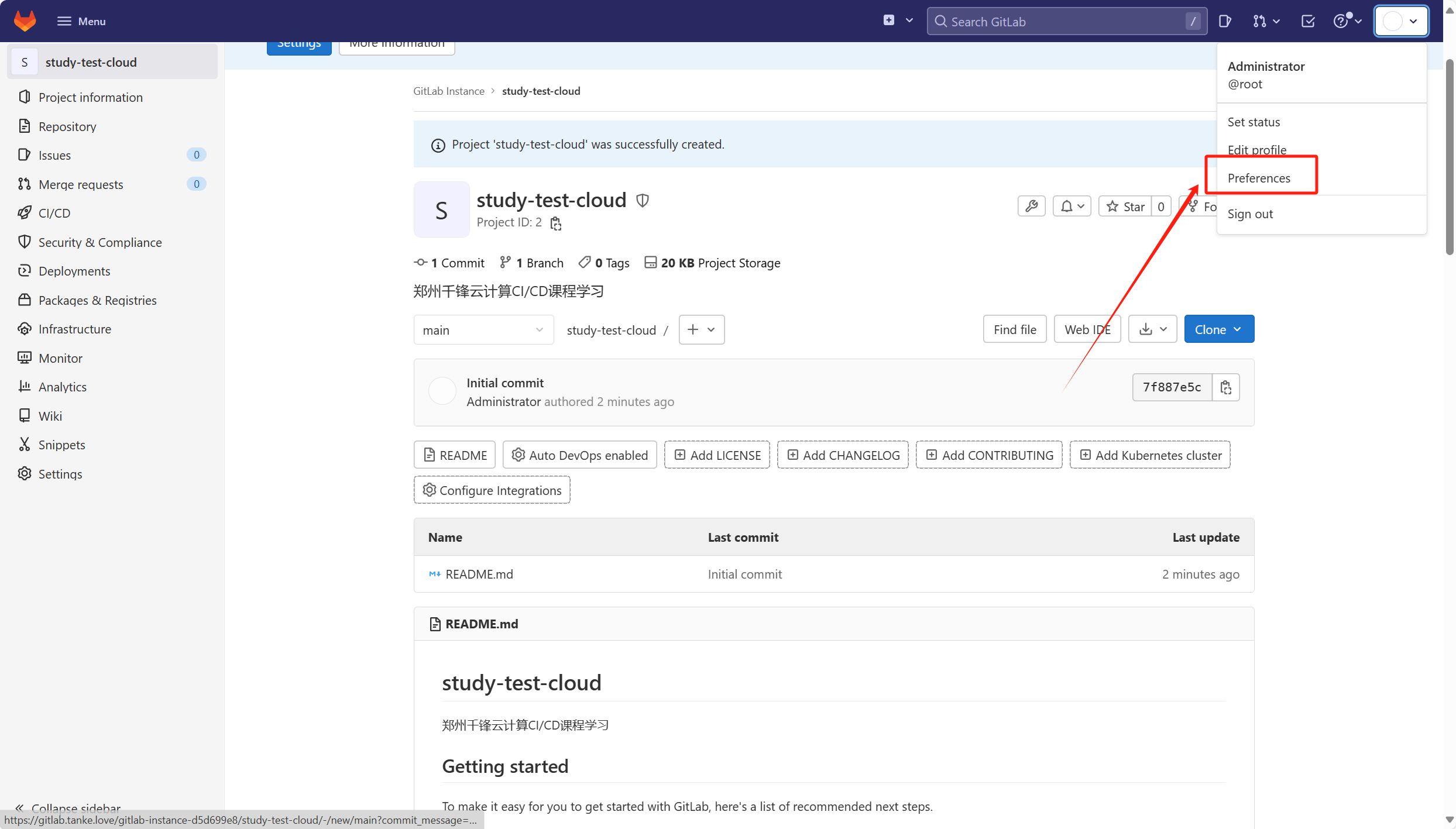
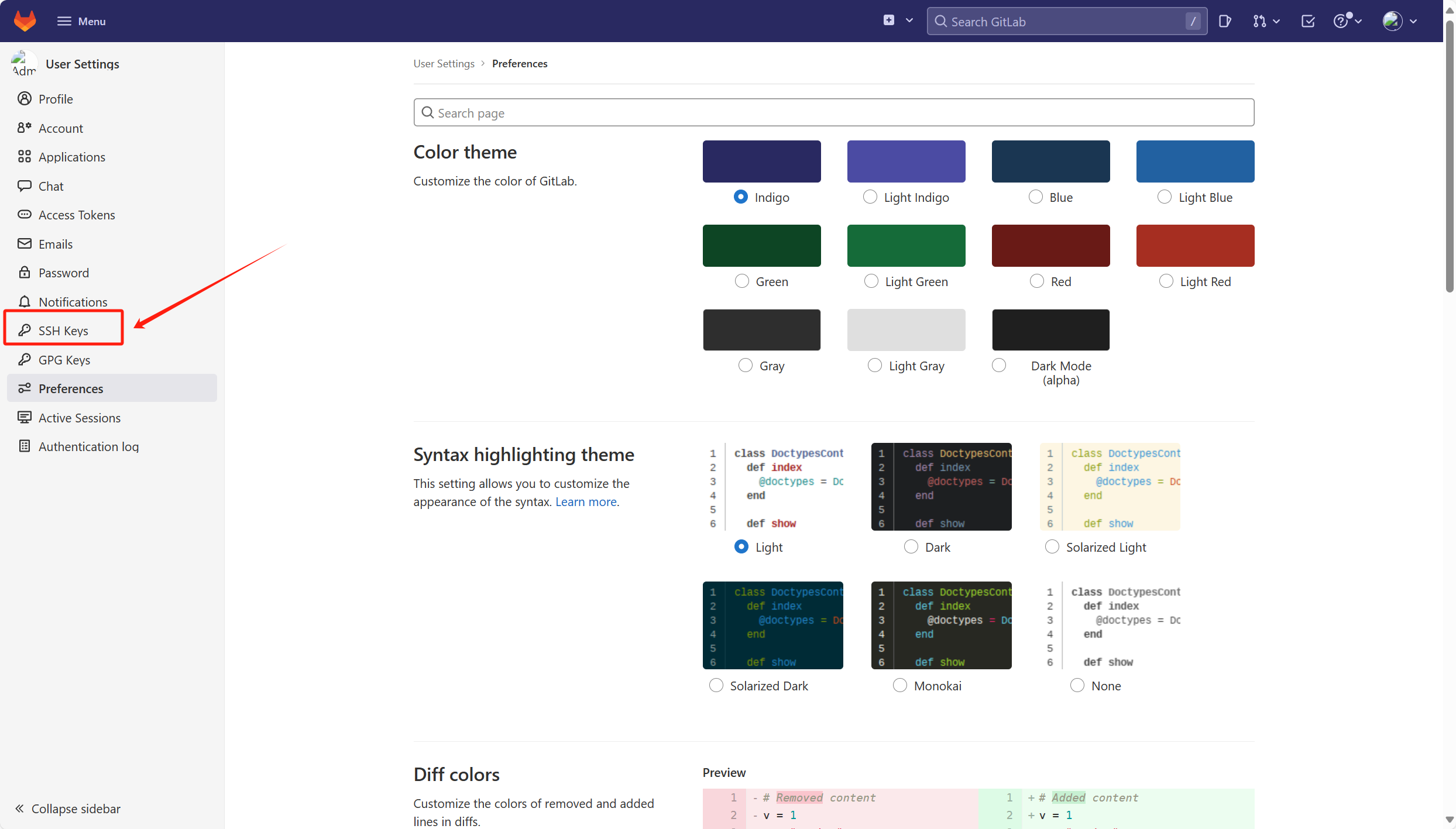
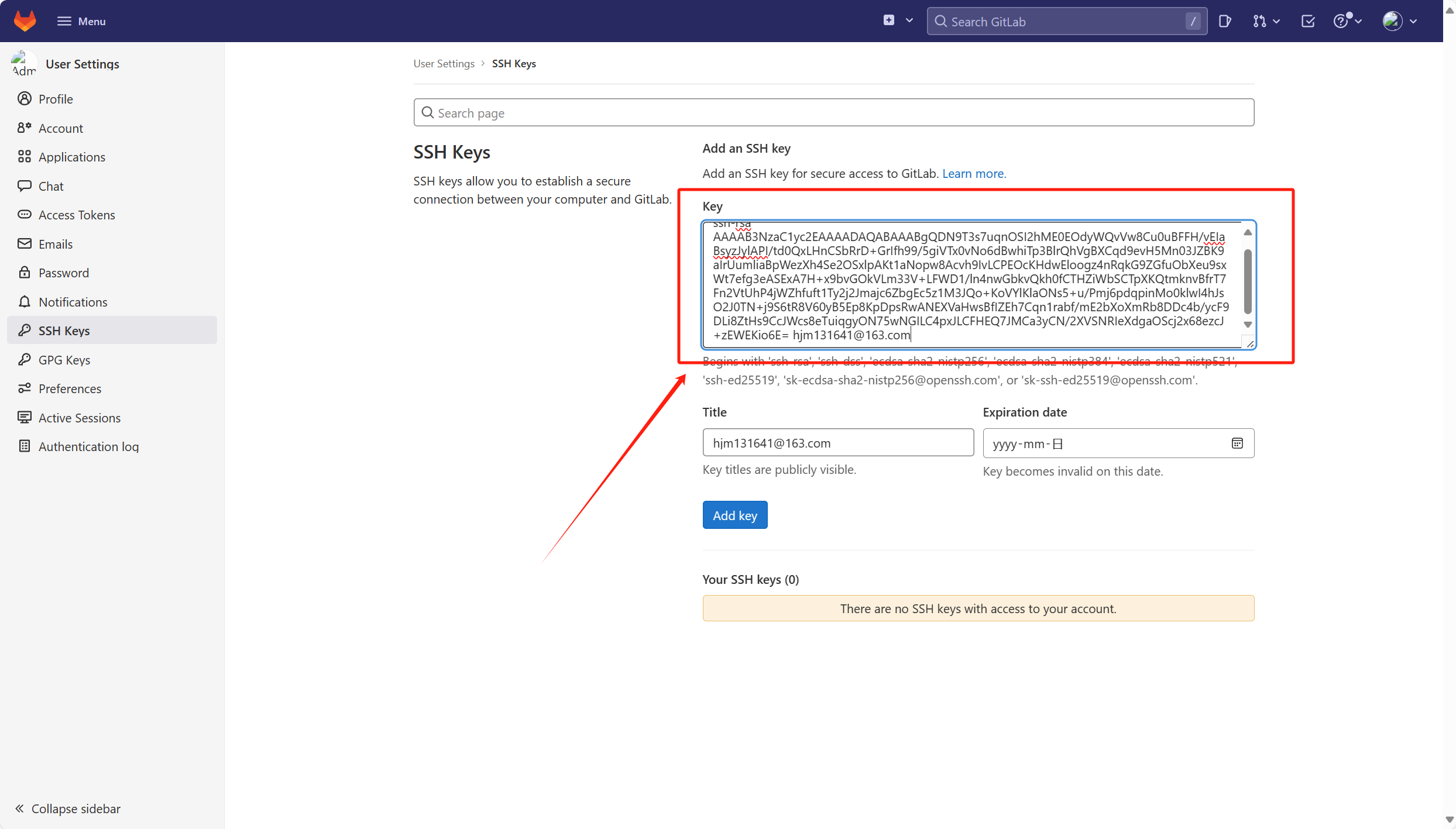
上传SSH公钥

image.png
image.png

1
2
3
4
# 查看本地公钥
lenovo@LAPTOP-P0AL7U72 MINGW64 ~/Desktop/qf2401 (master)
$ cat ~/.ssh/id_rsa.pub
ssh-rsa AAAAB3NzaC1yc2EAAAADAQABAAABgQDN9T3s7uqnOSI2hME0EOdyWQvVw8Cu0uBFFH/vEIaBsyzJylAPI/td0QxLHnCSbRrD+GrIfh99/5giVTx0vNo6dBwhiTp3BlrQhVgBXCqd9evH5Mn03JZBK9aIrUumliaBpWezXh4Se2OSxlpAKt1aNopw8Acvh9IvLCPEOcKHdwEloogz4nRqkG9ZGfuObXeu9sxWt7efg3eASExA7H+x9bvGOkVLm33V+LFWD1/ln4nwGbkvQkh0fCTHZiWbSCTpXKQtmknvBfrT7Fn2VtUhP4jWZhfuft1Ty2j2Jmajc6ZbgEc5z1M3JQo+KoVYlKlaONs5+u/Pmj6pdqpinMo0klwI4hJsO2J0TN+j9S6tR8V60yB5Ep8KpDpsRwANEXVaHwsBfIZEh7Cqn1rabf/mE2bXoXmRb8DDc4b/ycF9DLi8ZtHs9CcJWcs8eTuiqgyON75wNGILC4pxJLCFHEQ7JMCa3yCN/2XVSNRIeXdgaOScj2x68ezcJ+zEWEKio6E= hjm131641@163.com

image.png

拉取代码

1
2
3
4
5
6
7
8
9
10
11
12
13
14
15
16
17
18
19
20
21
22
23
24
25
26
27
28
29
30
31
32
33
34
35
36
37
38
# 拉取代码
lenovo@LAPTOP-P0AL7U72 MINGW64 ~/Desktop
$ git clone git@gitlab.tanke.love:gitlab-instance-d5d699e8/study-test-cloud.git
Cloning into 'study-test-cloud'...
remote: Enumerating objects: 3, done.
remote: Counting objects: 100% (3/3), done.
remote: Compressing objects: 100% (2/2), done.
remote: Total 3 (delta 0), reused 0 (delta 0), pack-reused 0
Receiving objects: 100% (3/3), done.

lenovo@LAPTOP-P0AL7U72 MINGW64 ~/Desktop
$ ls
Bandicam/ desktop.ini qf2401/ study-test-cloud/ work/ 郑州千锋/

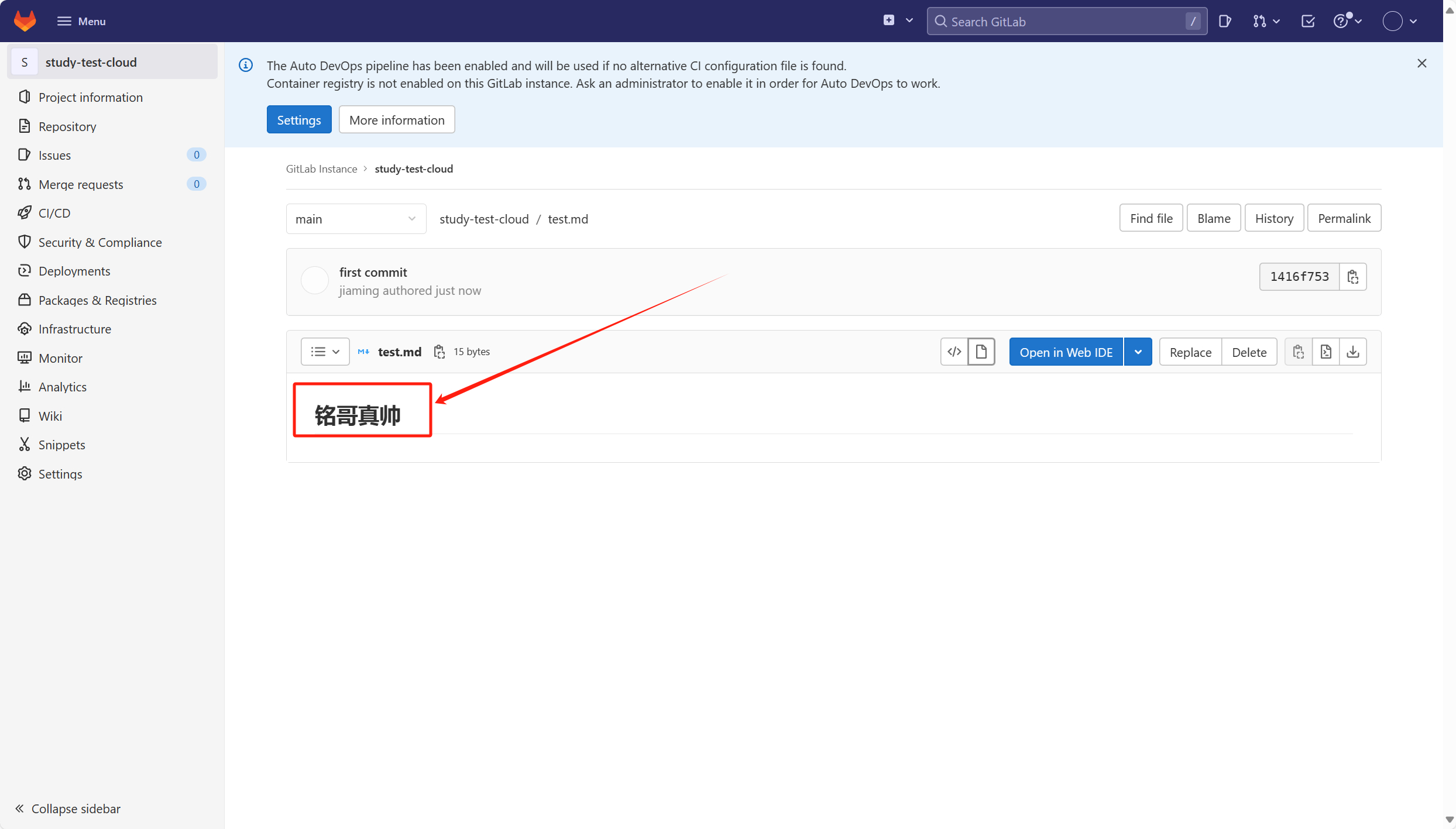
# 测试
lenovo@LAPTOP-P0AL7U72 MINGW64 ~/Desktop/study-test-cloud (main)
$ echo "# 铭哥真帅" > test.md

lenovo@LAPTOP-P0AL7U72 MINGW64 ~/Desktop/study-test-cloud (main)
$ git add .
warning: in the working copy of 'test.md', LF will be replaced by CRLF the next time Git touches it

lenovo@LAPTOP-P0AL7U72 MINGW64 ~/Desktop/study-test-cloud (main)
$ git commit -am "first commit"
[main 1416f75] first commit
1 file changed, 1 insertion(+)
create mode 100644 test.md

lenovo@LAPTOP-P0AL7U72 MINGW64 ~/Desktop/study-test-cloud (main)
$ git push origin main
Enumerating objects: 4, done.
Counting objects: 100% (4/4), done.
Delta compression using up to 32 threads
Compressing objects: 100% (2/2), done.
Writing objects: 100% (3/3), 280 bytes | 280.00 KiB/s, done.
Total 3 (delta 0), reused 0 (delta 0), pack-reused 0 (from 0)
To gitlab.tanke.love:gitlab-instance-d5d699e8/study-test-cloud.git
7f887e5..1416f75 main -> main

image.png

Tag版本推送

GitLab 的 tag(标签)在版本控制中主要用于标记某个特定的提交(commit)点。这些标签通常用于表示软件的发布版本,使得开发者能够轻松地引用和查找这些重要的提交点。

  1. 版本标记
    • 标签可以标记代码库中的特定版本,如 v1.0.0、v2.1.3 等。这有助于开发者和其他利益相关者(如产品经理、测试人员、用户等)清楚地了解代码的当前状态和历史版本。
  2. 发布管理
    • 当软件达到某个稳定状态并准备发布时,可以为该状态创建一个标签。这有助于在后续开发过程中追踪和比较不同版本之间的差异。
    • 通过标签,可以轻松地回滚到以前的版本,如果新版本出现严重问题或不符合预期。
  3. 构建和部署
    • 在持续集成/持续部署(CI/CD)流程中,标签经常用于触发构建和部署操作。例如,当一个新的标签被推送到代码库时,CI/CD 系统可以自动构建和部署该版本的软件。
      1
      2
      3
      4
      5
      6
      7
      8
      9
      10
      11
      12
      13
      14
      15
      16
      17
      18
      19
      20
      21
      22
      23
      24
      25
      26
      27
      28
      29
      30
      31
      32
      33
      34
      35
      36
      37
      38
      39
      40
      41
      42
      43
      44
      45
      46
      47
      48
      49
      50
      51
      52
      53
      54
      55
      56
      lenovo@LAPTOP-P0AL7U72 MINGW64 ~/Desktop/study-test-cloud (main)
      $ vim tag.txt

      lenovo@LAPTOP-P0AL7U72 MINGW64 ~/Desktop/study-test-cloud (main)
      $ git add .
      warning: in the working copy of 'tag.txt', LF will be replaced by CRLF the next time Git touches it

      lenovo@LAPTOP-P0AL7U72 MINGW64 ~/Desktop/study-test-cloud (main)
      $ git commit -m "net tag.txt"
      [main 3461e18] net tag.txt
      1 file changed, 1 insertion(+)
      create mode 100644 tag.txt

      lenovo@LAPTOP-P0AL7U72 MINGW64 ~/Desktop/study-test-cloud (main)
      $ git tag -a "v1.1" -m "new e.txt"

      lenovo@LAPTOP-P0AL7U72 MINGW64 ~/Desktop/study-test-cloud (main)
      $ git push origin main

      lenovo@LAPTOP-P0AL7U72 MINGW64 ~/Desktop/study-test-cloud (main)
      $ git push origin v1.1
      Enumerating objects: 5, done.
      Counting objects: 100% (5/5), done.
      Delta compression using up to 32 threads
      Compressing objects: 100% (3/3), done.
      Writing objects: 100% (4/4), 424 bytes | 424.00 KiB/s, done.
      Total 4 (delta 0), reused 0 (delta 0), pack-reused 0 (from 0)
      To gitlab.tanke.love:gitlab-instance-d5d699e8/study-test-cloud.git
      * [new tag] v1.1 -> v1.1


      lenovo@LAPTOP-P0AL7U72 MINGW64 ~/Desktop/study-test-cloud (main)
      $ git log
      commit 3461e180cc300dddd9ea289c619b74f771e57dd9 (HEAD -> main, tag: v1.1)
      Author: jiaming <hjm131641@163.com>
      Date: Tue Jun 4 23:30:26 2024 +0800

      net tag.txt

      commit c3aba0f8f1d3fa73789ce7562ed97526433628b0 (origin/main, origin/HEAD)
      Author: jiaming <hjm131641@163.com>
      Date: Tue Jun 4 23:22:26 2024 +0800

      first commit

      commit 1416f75324c274ae5b813ee7ce8d80a09d61212b
      Author: jiaming <hjm131641@163.com>
      Date: Tue Jun 4 23:02:44 2024 +0800

      first commit

      commit 7f887e5c316766a6cab4b81ba73cfd00e1230fc2
      Author: Administrator <admin@example.com>
      Date: Tue Jun 4 22:55:52 2024 +0800

      Initial commit

      Gitlab备份

      1
      2
      3
      4
      5
      6
      7
      8
      9
      # 查看Gitlab的版本
      [root@localhost ~]# cat /opt/gitlab/embedded/service/gitlab-rails/VERSION
      15.1.2

      # 打开配置文件数据备份
      [root@localhost ~]# vim /etc/gitlab/gitlab.rb
      gitlab_rails['backup_path'] = "/var/opt/gitlab/backups" #备份的路径
      gitlab_rails['backup_archive_permissions'] = 0644 #备份文件的默认权限
      gitlab_rails['backup_keep_time'] = 604800 #保留时长,秒为单位
      设置备份保留时长,防止每天执行备份,肯定有目录被爆满的风险,打开/etc/gitlab/gitlab.rb配置文件,找到如下配置
      该项定义了默认备份出文件的路径,可以通过修改该配置,并执行 gitlab-ctl reconfigure 或者 gitlab-ctl restart 重启服务生效。
      1
      2
      3
      4
      5
      6
      7
      8
      9
      [root@localhost ~]# gitlab-ctl reconfigure
      或者
      [root@localhost ~]# gitlab-ctl restart

      [root@localhost ~]# echo $?
      0

      # 执行备份命令进行备份
      [root@localhost ~]# gitlab-rake gitlab:backup:create
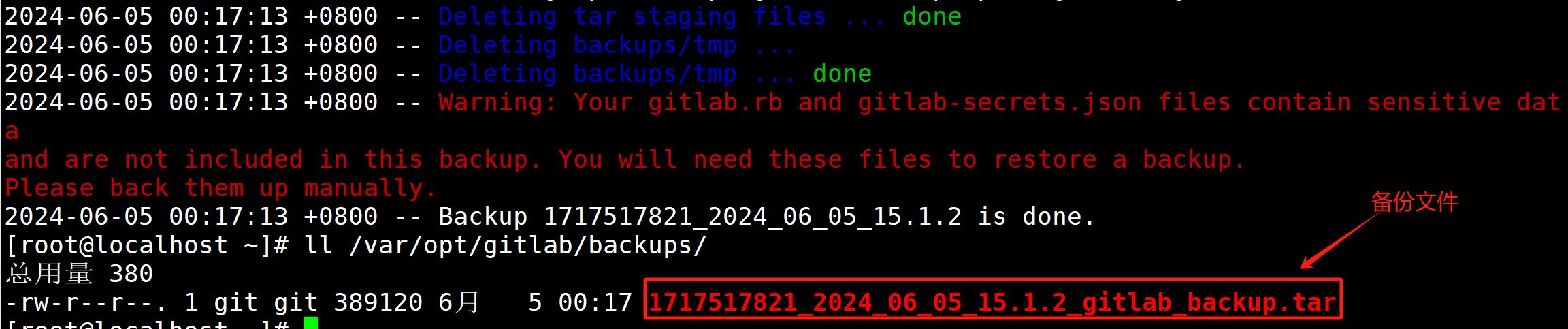
      image.png
      也可以添加到 crontab 中定时执行:
      1
      0 2 * * * /opt/gitlab/bin/gitlab-rake gitlab:backup:create
      可以到/var/opt/gitlab/backups找到备份包,解压查看,会发现备份的还是比较全面的,数据库、repositories、build、upload等分类还是比较清晰的。备份完成,会在备份目录中生成一个当天日期的tar包。
      1
      [root@localhost ~]# ll /var/opt/gitlab/backups/

Gitlab数据恢复

特别注意:

  • 备份目录和gitlab.rb中定义的备份目录必须一致
  • GitLab的版本和备份文件中的版本必须一致,否则还原时会报错。

模拟删除数据
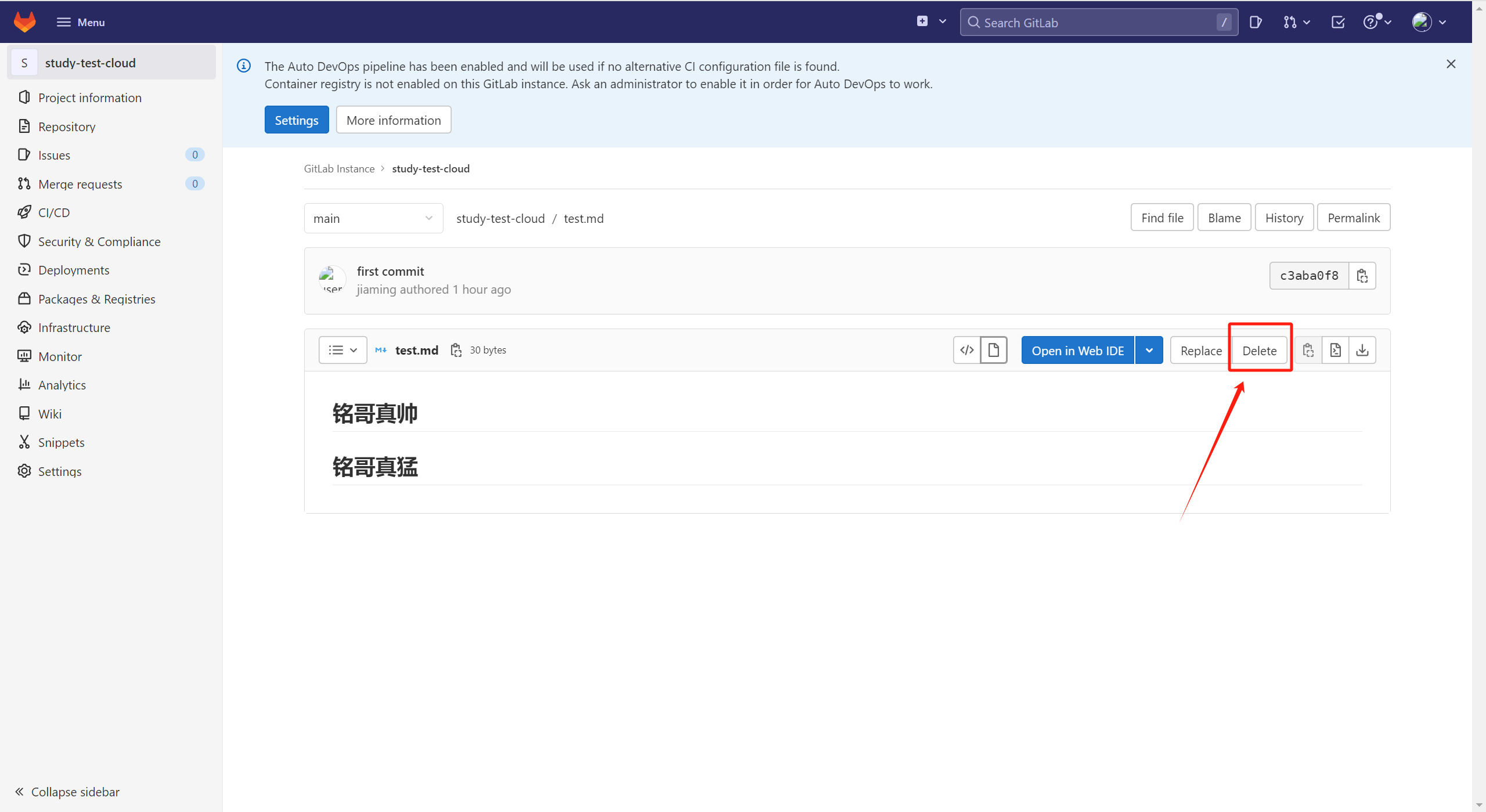
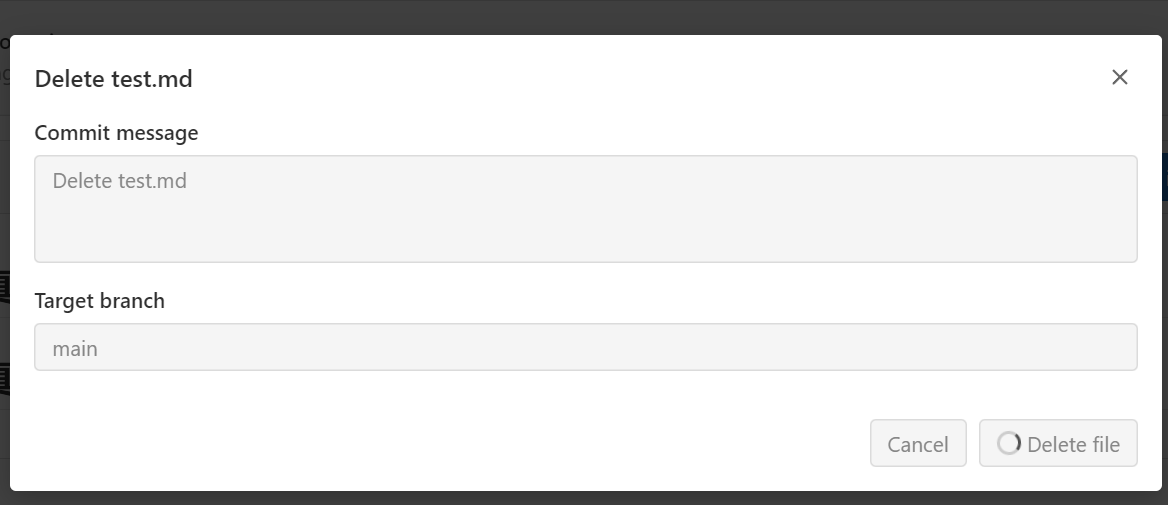
image.png
image.png

1
2
3
4
5
[root@localhost ~]#  cd /var/opt/gitlab/backups
[root@localhost backups]# ls
1717517821_2024_06_05_15.1.2_gitlab_backup.tar
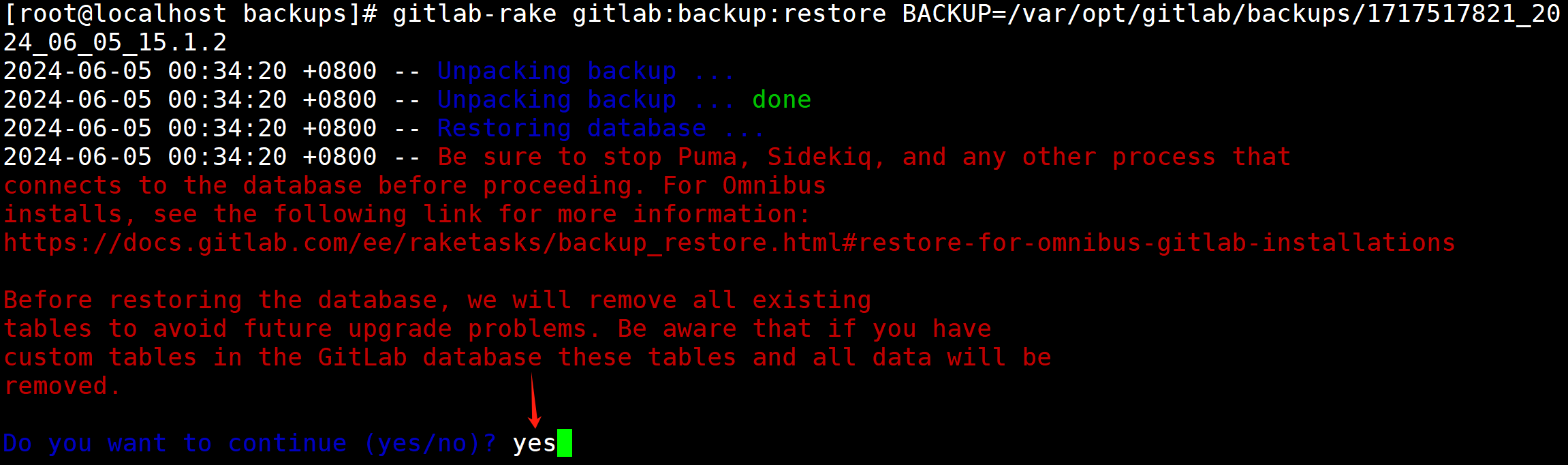
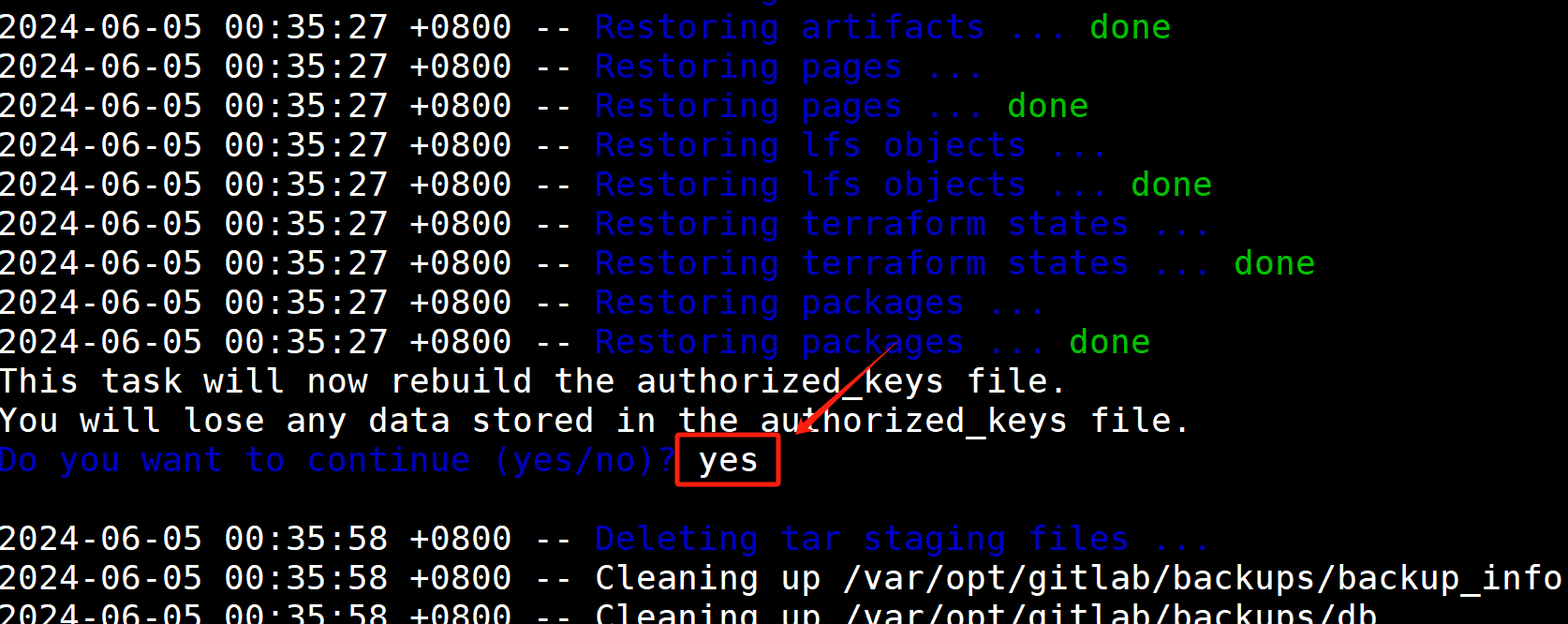
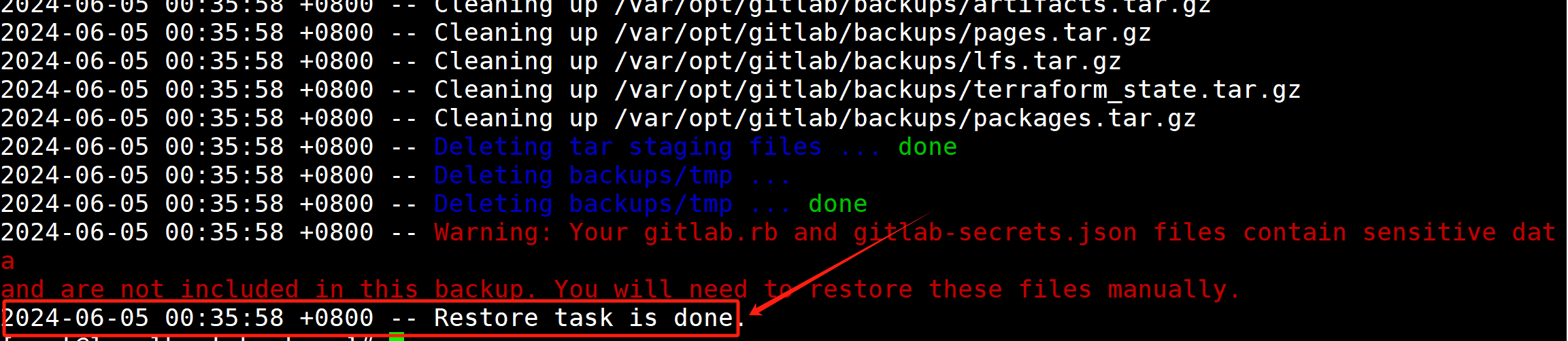
[root@localhost ~]# gitlab-rake gitlab:backup:restore BACKUP=/var/opt/gitlab/backups/
# 注意恢复文件的名称

image.png
image.png
image.png
恢复完成后,启动刚刚的两个服务,或者重启所有服务,再打开浏览器进行访问,发现数据和之前的一致:
注意:通过备份文件恢复gitlab必须保证两台主机的gitlab版本一致,否则会提示版本不匹配

再次查看Gitlab
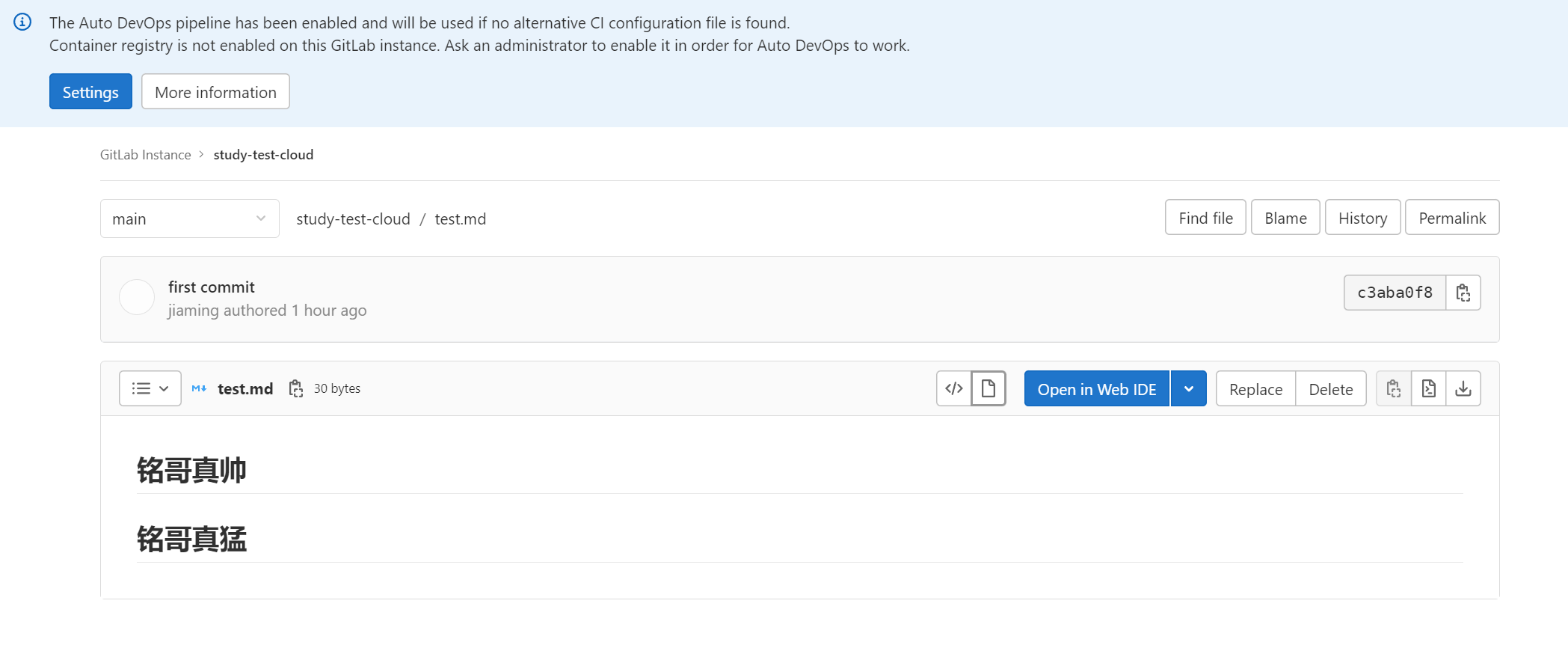

image.png